
Introduction
CUPS is a printing system used on many different Linux distributions. Its use is very widespread, as it has become the standard print manager on the majority of popular Linux distros. It acts as a print spooler, scheduler, print job manager, and can store information for numerous local or network printers.
Installation
The device must have an active internet connection.
opkg update
# cups is the printing system
opkg install cups --force-reinstall --force-overwrite
# cups-filters provides backends, filters, and other software that was once part of the core CUPS distribution
opkg install cups-filters
# hp base cups printer drivers
opkg install hplip
# Ghostscript is an interpreter for the PostScript®  language and PDF files.
opkg install ghostscript
Start
# Start cups server
service cups start
Or by using the webconfig: Printer
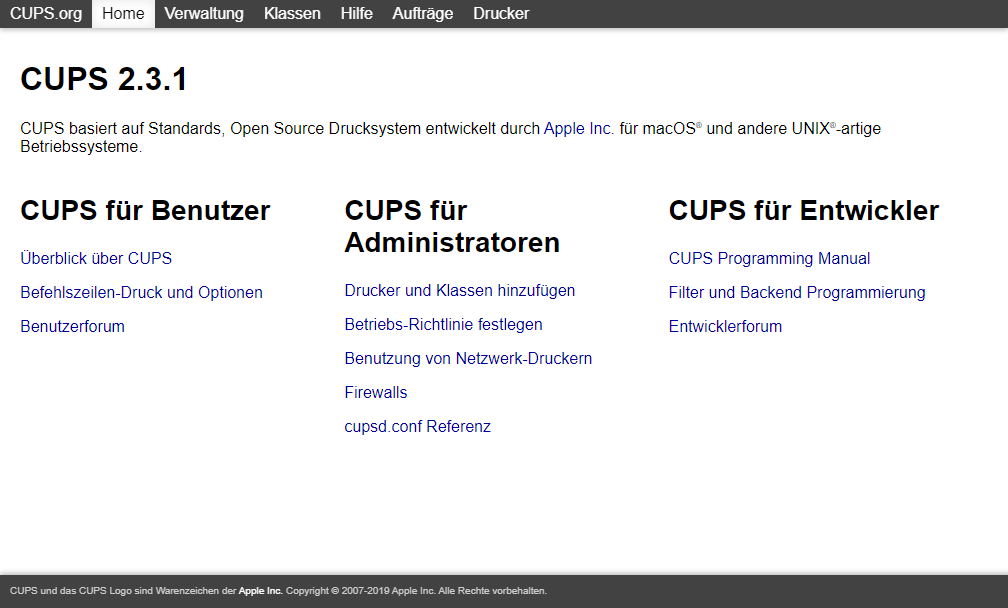
CUPS Administration Page
Open cups administration page in a webbrowser: Printer
http://<ip>:631 (http://192.168.1.125:631/)
In the web administration panel, you can add or delete printers, install drivers, access the print spooler, and configure various settings for all the printers accessible from your device.
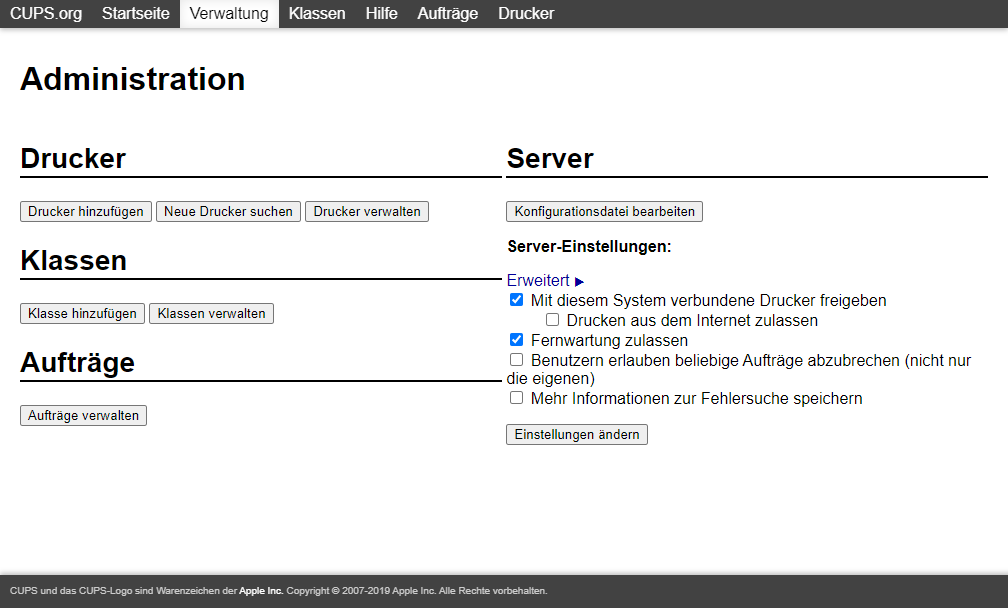
Most or all of the options you’ll need to interact with can be found in the “Administration” section.
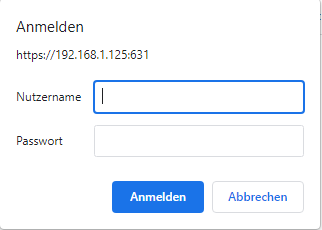
For different administration settings there is a login necessary with your system user/password (System Info & Access).
Add new Printer
You can add a printer through CUPS by going to the “Administration” section as described above, then clicking “Add printer.”
This starts a automaticaly a step by step wizard process.
If there are any network printers discovered, they’ll be listed here.
Otherwise, you can choose to add an “HP printer” which is more of a catch-all for any type of hardwired printer, and not specifically HP manufactured printers.
If the authentication window opens, simply use your system password (System Info & Access).
If you’re sure there is a printer on the network that hasn’t been automatically discovered and listed here, just choose the appropriate network protocol and click through to the next menu to add it via its network address.
Print File
CUPS can be used from the Linux command line to print files, see available printers, and even configure lots of different printing options.
To print a file, use the lp command followed by the file you wish to print. CUPS can interpret most types of files, including text, PDF, images, etc.
lpr -P printername file.pdf
Supported Images
-
01013
-
01021
-
01028
-
01056
-
01070
-
01071
A help, full list of options, other commands can be found in the help section of the cups administration page.