
SWUpdate is a Linux update agent with the goal to provide an efficient and safe way to update an embedded system.
SWUpdate supports local and remote updates, as well as multiple update strategies.
It has a user-friendly GUI and can be operated by touch or mouse.
SWUpdate is developed by Stefano Babic from DENX and is licensed under GPL Version 2.0+
You can check SWUpdate's online documentation at: http://sbabic.github.io/swupdate
Features
|
|
|
|---|---|
Atomic Update
|
Atomic update avoids that power-cuts and network losses can brick your device. New software is always fully installed or update is interrupted keeping the device running. There is no partial software update as with package-based update. |
Zero copy
|
SWUpdate has a small footprint – if configured, it does not create temporary copies and the incoming packets are directly installed on the storage. The whole process (decompression, decryption) is done in chunks in memory, making life harder for potential attackers. |
Authenticity of update
|
Update packages are signed and verified by SWUpdate to authenticate authorized and trusted updates. SWUpdate supports signing with RSA keys and with cerificates using its own PKI infrastructure. |
Update everything
|
SWUpdate is able to update all components of your device:
|
Reliable
|
Atomic update avoids that power-cuts and network losses can brick your device (except bootloader and rescue system). |
Hardware compatibility
|
SWUpdate verifies that delivered software can be applied to the device. A hardware compatibility map is applied to any release. |
Backup System
|
SWUpdate can backup your entire system into a swu file |
Rescue System
|
With the rescue system the device can be restored at any time |
Concept
With the SWUpdate concept, multiple partitions are now available in the internal memory.
The partition rootfs is the area which is used in normal operation and contains your settings and applications.
The new partition rescue is a minimal life system, which is only used for a backup or restore of the system.
With this new partition, we have the possibility to easily provide a backup in only one file, this is the swu file.
The live system that is provided can simply be added as an additional rescue card that contains the already created swu file.
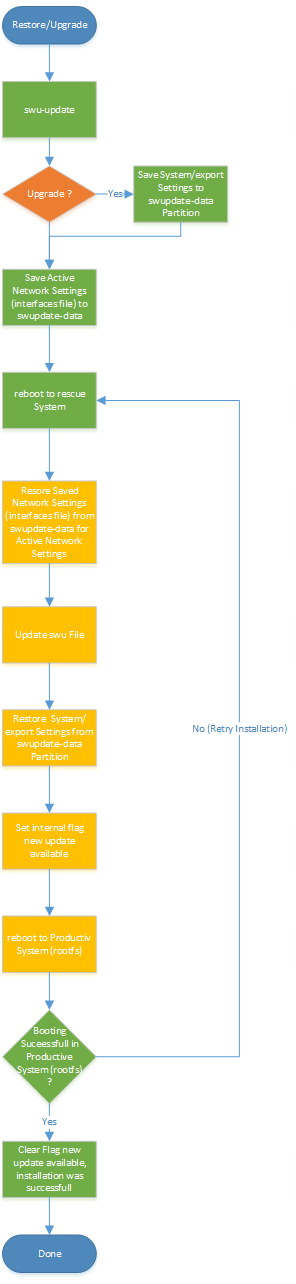
In addition to the classic restore of a device, an upgrade is now also possible.
With this new feature, the settings of the device are restored after the update.
The swu files are signed and are therefore unchangeable (integrity).
After an update, the system is restarted and checked. If necessary it is reinstalled.
A swu file can be written either completely on the internal flash or only the newer areas of the swu file, except the rootfs partition, which is always overwritten.
For recommended update procedures.
SWUpdate GUI
The rescue partition where the swu file is executed contains a GUI for the display as well as a web interface where an update can be optionaly started.
The SWUpdate GUI with webinterface is in the RescueOS (rescue) and RescueCard available.
GUI Local System
Main Page
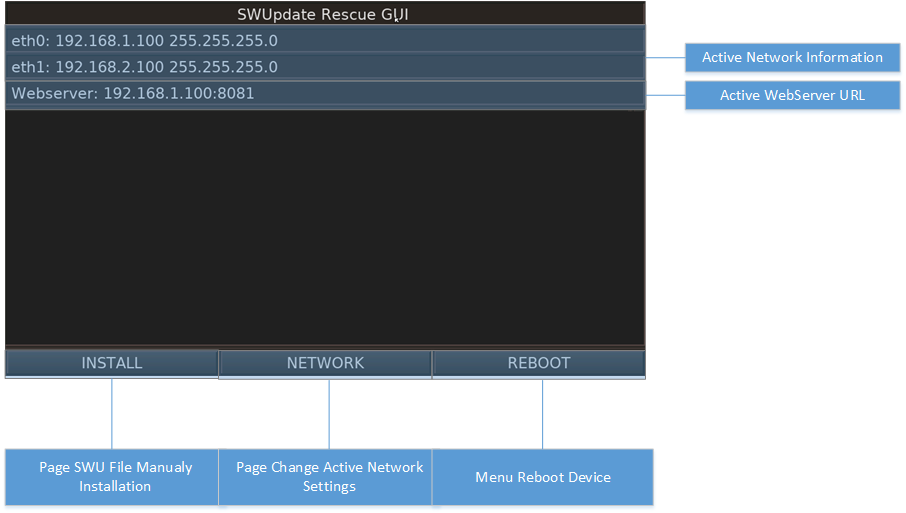
The Main Page is the entry Point of the GUI.
The Page shows the active network configuration an the URL used for the swupdate webserver.
Install Page
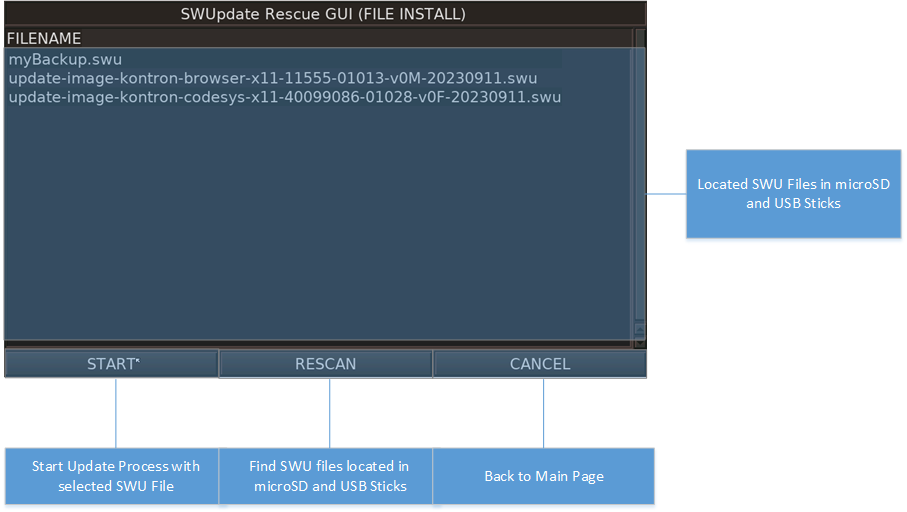
The Install Page is used to start the update process manualy by choosing a swu file located on any pluged microSD Card or USB Stick.
Network Page
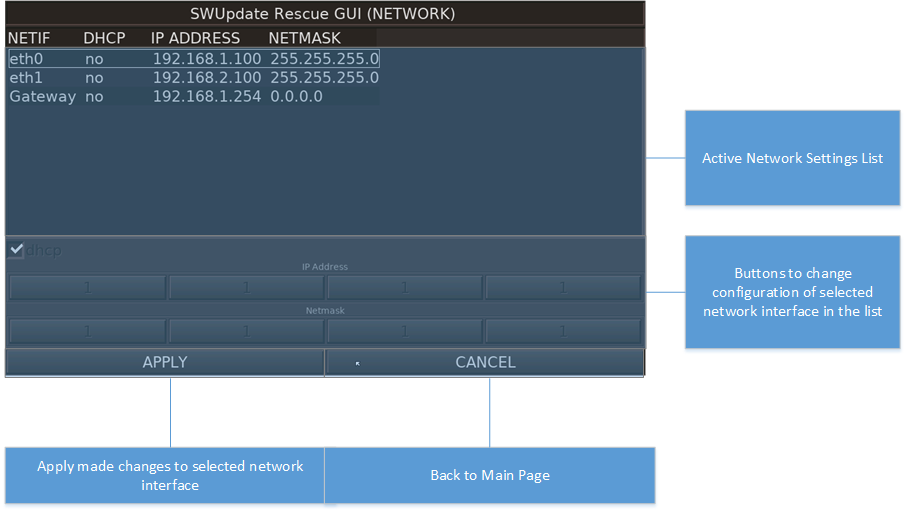
With the Network Page the ip address of the network interfaces can be changed.
The new settings will not saved persistently.
Reboot Menu
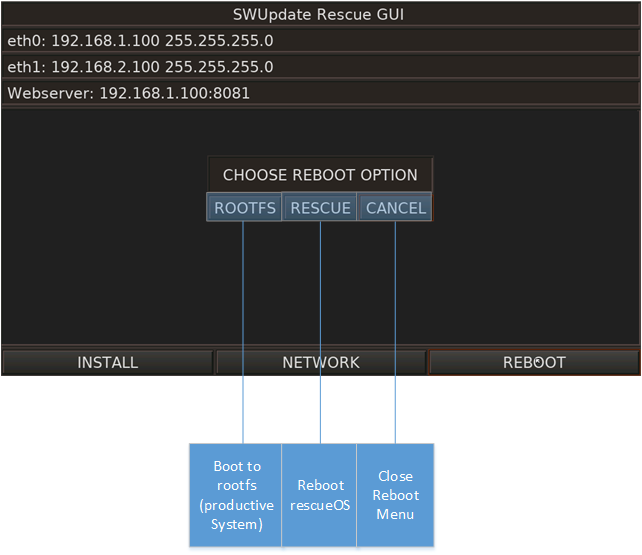
The Reboot Menu is used to manualy boot into the rootfs (Productive System) or reboot into the RescueOS.
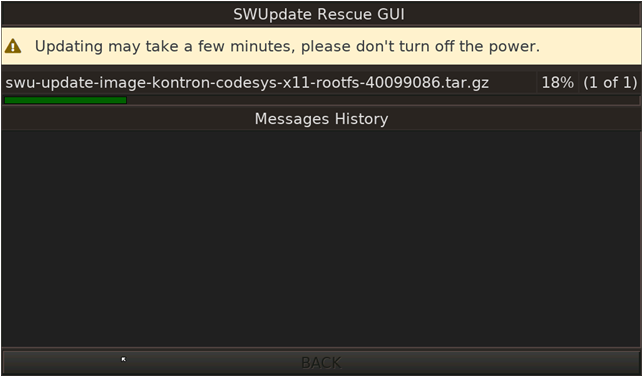
Progress Page
The Progress Page is automaticaly visible when a update process is running and shows the progress state and errors in the Messages History.
GUI WebInterface
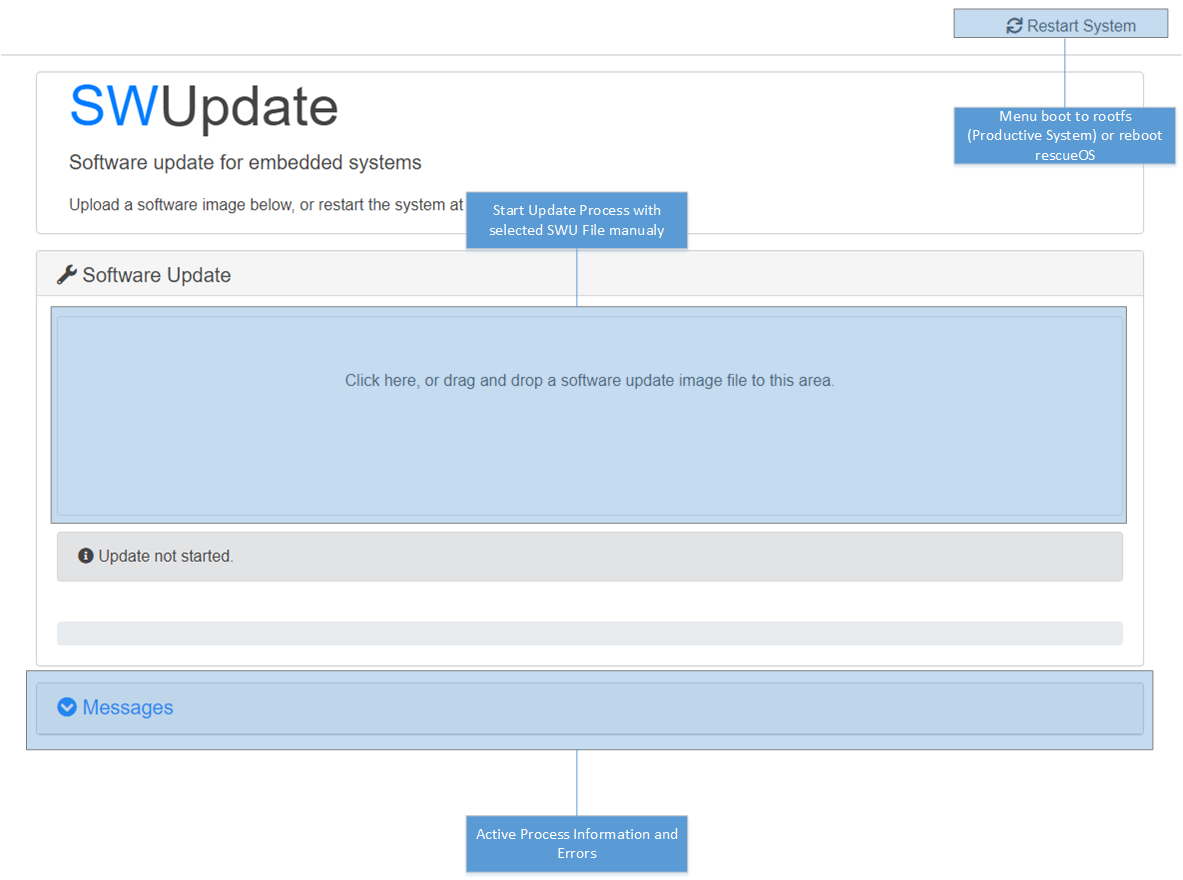
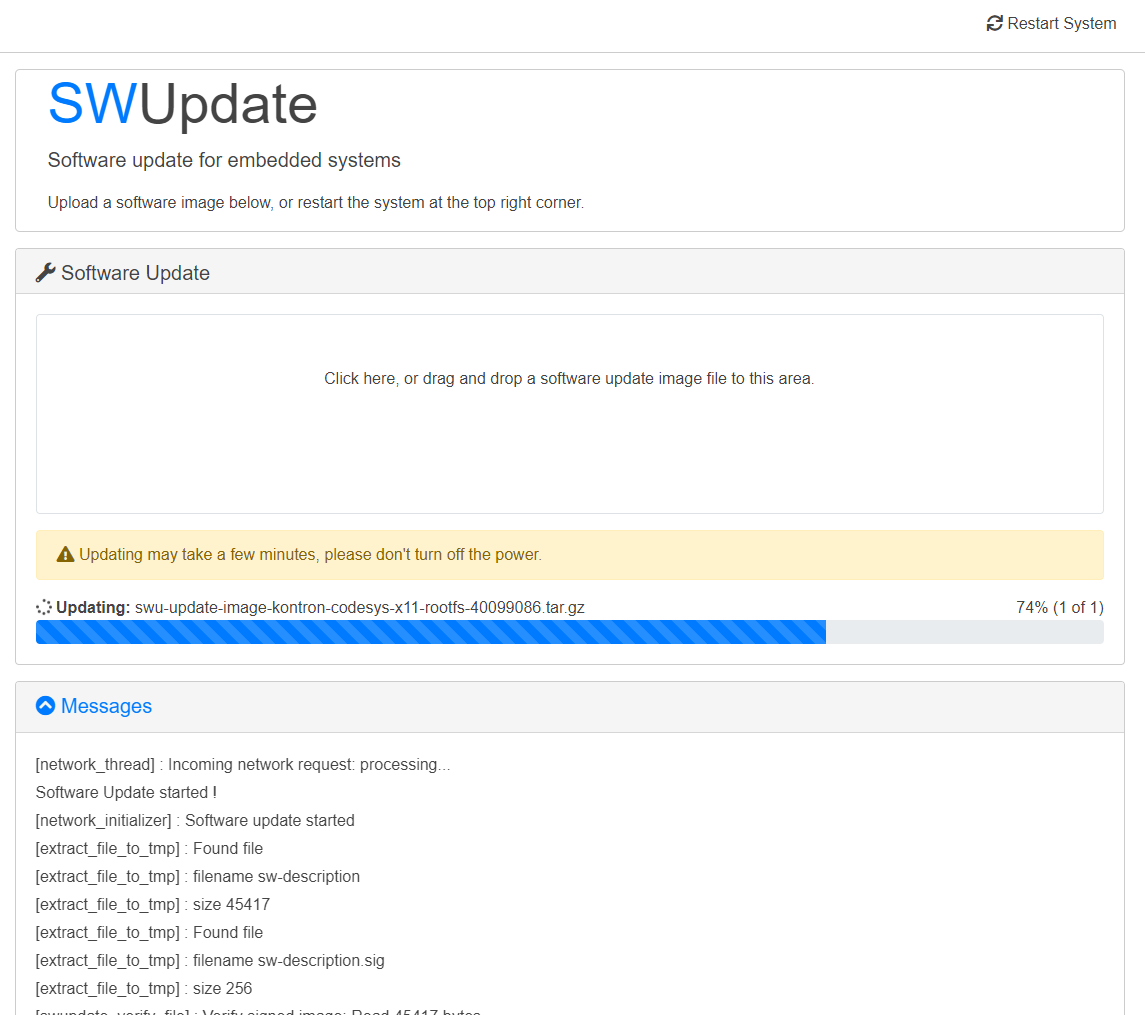
The swupdate webserver interface shows the progress state and errors in the Messages.
The update process can be manualy started dropping a swu file into the image area.
The Restart System Menu is used to manualy boot into the rootfs (Productive System) or reboot into the RescueOS.
More about swupdate
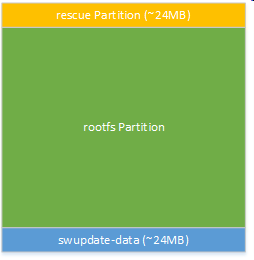
Partition scheme on eMMC/NANDFLASH
|
Name |
Description |
|---|---|
|
Rescue |
The rescue partition contains a minimal linux system, which is responsible for the execution of the swu files. This partition is used in case of an update or backup of the system. |
|
RootFS |
The RootFS partition contains the productive system with the corresponding application, qiwi, codesys, etc..
|
|
swupdate-data |
This partition is only used for the common data of the rescue and rootfs partition, e.g. the network configuration and export files. In addition, the versions of the individual parts that are installed are stored here. |
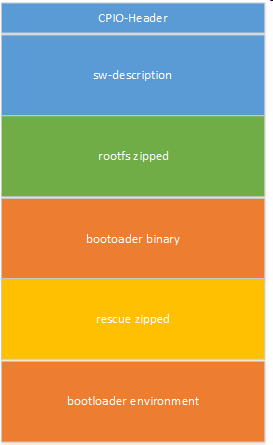
Update File swu Format
|
Name |
Description |
|---|---|
|
cpio-header |
The swu file is a cpio archive. This is the cpio-header. |
|
sw-description |
The sw-description contains meta information about each single image and the global information.
|
|
rootfs zipped |
Zipped content of the productive system. This Content will always installed in case of a update or a complete installation. |
|
bootloader binary |
Bootloader This Content will only installed if the bootloader on the device has an older version than the bootloader in the swu file or if a complete installation is used. |
|
rescue zipped |
Zipped content of the rescue system. This Content will only installed if the bootloader on the device has an older version than the bootloader in the swu file or if a complete installation is used. |
|
bootloader environment |
Bootloader environment variables. This Content will only installed if the bootloader on the device has an older version than the bootloader in the swu file or if a complete installation is used. |
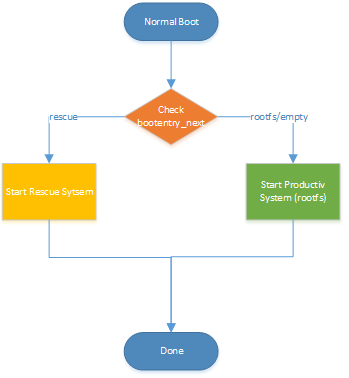
Boot procedure behavior
|
Normal Boot |
Backup |
Restore/Update |
|---|---|---|
|

|
|
Log Files
Log File of a swu-create or swu-update process are saved in swupdate-data partition.
Complete Installation
if the device is empty, contains a image without swupdate support or the device does not boot according corrupt content.
For these cases use the delivered Rescue Image.
Available Images for our devices
|
Image |
File Name |
Description |
|---|---|---|
|
Rescue Image |
[ArticleNumber].img.gz |
Used as a lifeline when the system stops responding or for the complete installation. This image includes the *.swu and the LiveSystem/Rescue. With the RescueCard the complete system will always be restored. |
|
SWU Image |
[ArticleNumber].swu |
This is the Software Image for the update. The SWU-Update system can handle *.swu Files. Used when the SWU-Update system is working properly. The update can be started in the productive system, using the webconfig or the commandline. |
Using the swupdate to Backup a Device
-
Configure your device.
-
Create a backup with the webconfig or the commandline
-
Wait till backup finished.
-
PowerOff your device
-
Remove microSD Card or USB Stick used to backup your device.
-
Create a RescueCard
Using the swupdate to restore/update a Device
-
Power On your Device (device boots into productive system)
-
Update device using the webconfig or the commandline
-
Wait till update finished.
-
PowerOff your device
-
Remove microSD Card or USB Stick used to restore your device.
Creating a RescueCard for a microSD Card for your device
Used as a lifeline when the system stops responding.
This image includes the *.swu and the LiveSystem.
With the RescueCard the Complete System will always be restored.
-
Download the rescue image from the FTP server (Use the same as your image version is).
-
Write the rescue image to a microSD card with the USB Image Tool.
-
Replace the exsiting swu file on the microSD, card with your backup swu file (backup created with the webconfig or the commandline).
-
Save the rescue image to a microSD card with the USB Image Tool.
Running SWUpdate
An update or backup can be started via the system configuration menu or by linux command line
Linux Commands:
|
Command |
Description |
Options |
|---|---|---|
|
swu-create |
This tool creates a SWU file (backup) from the current system. |
--bootenv-skip=LIST
Example: swu-create -y --list=bootenv,bootloader,rescue,rootfs --log=/run/media/sda /run/media/sda/myBackup.swu |
|
swu-update |
This tool starts the software update process.
|
-e <sw>,<mode> --select=<sw>,<mode>
-h, --help
-k KEYFILE
Example: swu-update -i /run/media/sda/myBackup.swu |
swu-verify
This tool starts the software update process in dry-run mode, in which no changes are made to the hardware. The tool checks the SWU file for compatibility with the hardware and the keys used for signing and encryption.
Below is the command line syntax:
$ swu-verify -h
Usage: swu-verify [-i FILE | -d CMD ] [-e <sw>,<mode>]
                  [-k KEYFILE] [-K KEYFILE] [-v]
       swu-verify -h|--help
  This tool starts the software update process in dry-run
  mode. This mode performs no changes to the hardware.
Options:
  -d CMD
    starts download client with command line CMD to download
    .swu file before verify
  -e <sw>,<mode> --select=<sw>,<mode>
    select the install rule from the sw description file to use.
    e.g. stable,update
  -h, --help
    display this help message
  -i FILE
    verify with image from local .swu file
  -k KEYFILE
    The file contains public key to be used to verify images.
    By Default, the key file stored in the system is used.
  -K KEYFILE
    The file contains the symmetric key to be used to decript
    images. By Default, the key file stored in the system is used.
  -v
    Activate verbose output.
Comparison Livesystem Backup/Restore vs. swupdate
|
|
Single File Concept |
Signed Files |
Update over HTTP/FTP |
No Additional Tools/SW |
No Internet Connection neccessary using the WebConfig |
|---|---|---|---|---|---|
|
livesystem |
- |
- |
- |
- |
- |
|
swupdate |
x |
x |
x |
x |
x |
Login (rescue Partition)
User: root
Password: rescue
Update Versions in Images
Both versions will work with the newest images.
|
Image |
Swupdate Backup/Restore (new Version) |
LiveSystem Backup/Restore (old Version) |
|---|---|---|
|
01028 |
>= 01028 0E |
<= 01028 0D |
|
01056 |
>= 01056 0C |
<= 01056 0B |
|
01023 |
-- |
01023 0x |
|
01071 |
>= 01071 0C |
<= 01071 0B |
|
01070 |
>= 01070 0C |
<= 01070 0B |
|
01085 |
>= 01085 0A |
-- |
|
|
|
|
|
01021 |
-- |
01021 0x |
|
00947 |
-- |
00947 0x |
|
01009 |
-- |
01009 0x |
|
01007 |
-- |
01007 0x |
|
01013 |
>= 01013 0L |
<= 01013 0K |
|
01026 |
-- |
01026 0x |
|
|
|
|
|
00948 |
-- |
00948 0x |
|
01024 |
-- |
01024 0x |
|
01010 |
-- |
01010 0x |
Remarks
-
If the RescueCard is started from an USB stick, the bootloader on the internal flash is always used.
-
Not all USB sticks are supported (the normal system is booted and not the LiveSystem)
-
If the bootloader or rescue part is not installed correctly (for example in case of power loss), the system can brick.
-
Check log files in case of errors.
-
If you have a imx6ul and imx6ull solution, you will have to create for each cpu type a backup.
Best Practice
-
Create a RescueCard with your backup in case a device can not boot anymore.
-
Use the WebConfiguration to backup/restore/upgrade your system.
-
Use a microSD Card for a first Installation.
Error Handling
-
The RescueCard does not boot from usb stick or the execution is faulty
-
use the microSD card.
-
check the log files on the RescueCard disk.
-
check the console output.
-
-
The swu-create/swu-update execution is faulty (failed)
-
check the log files.
-
check the console output.
-
-
The RescueCard does not boot, but the microSD is detected
-
check the console output
-
use the console to connect to the bootloader (type any key while booting) and use the commands
-
env default -a
-
savveenv
-
restart device
-
-