
Introduction
A complete set up virtual machine (with Qt installed) is available.
Application Development, chapter Introduction.
In case you want to set up your Qt environment by yourself, follow instruction below:
These instructions have been used with the Qt Creator 10.0.1 (based on Qt 6.3.2) and a WebPanel 4x with IP Address 192.168.1.125.
Download and Installation Qt
wget https://download.qt.io/official_releases/online_installers/qt-unified-linux-x64-online.run
chmod +x qt-unified-linux-x64-online.run
./qt-unified-linux-x64-online.run
1.
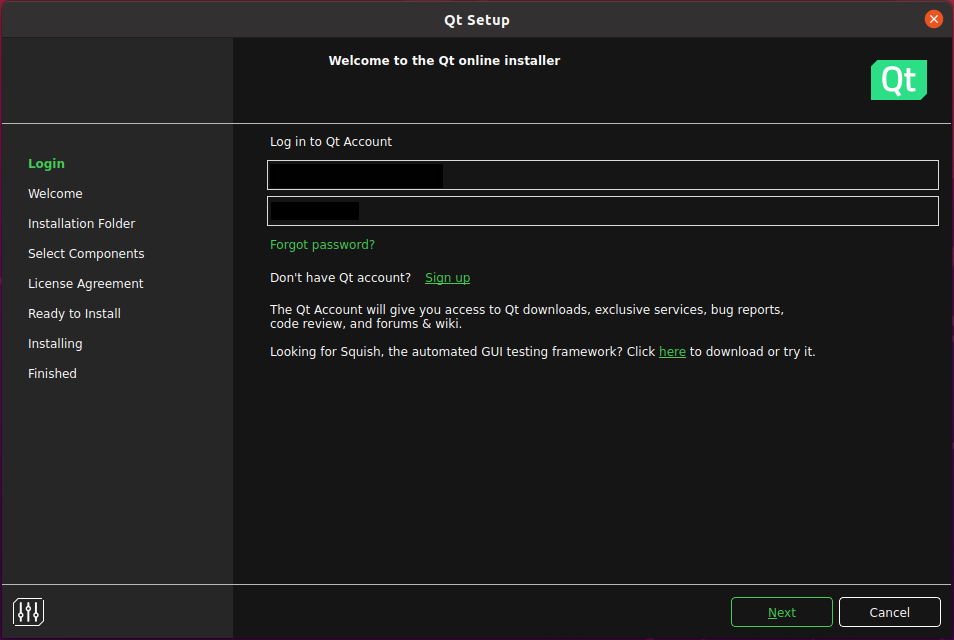
2.
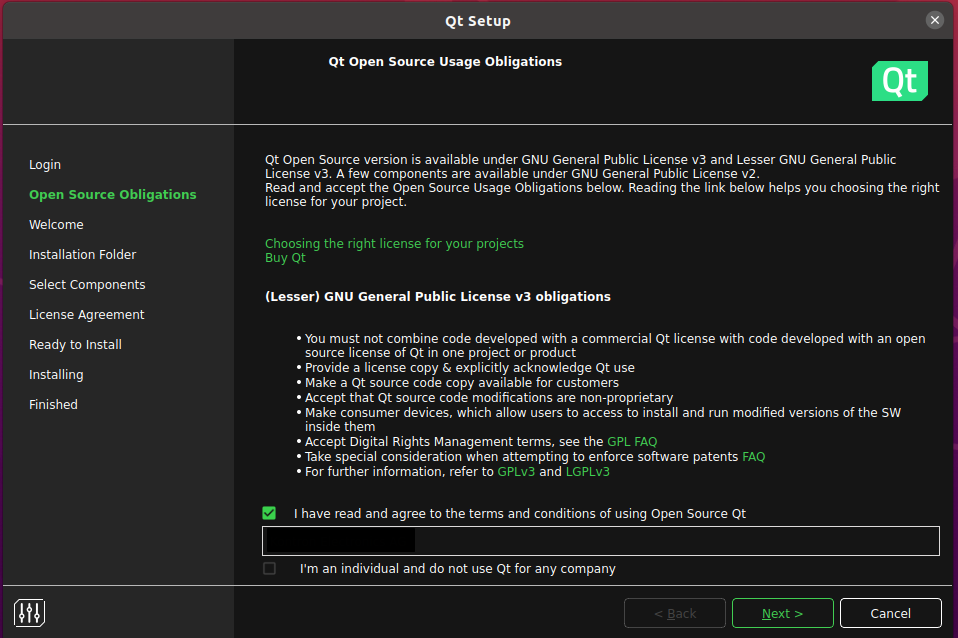
3.
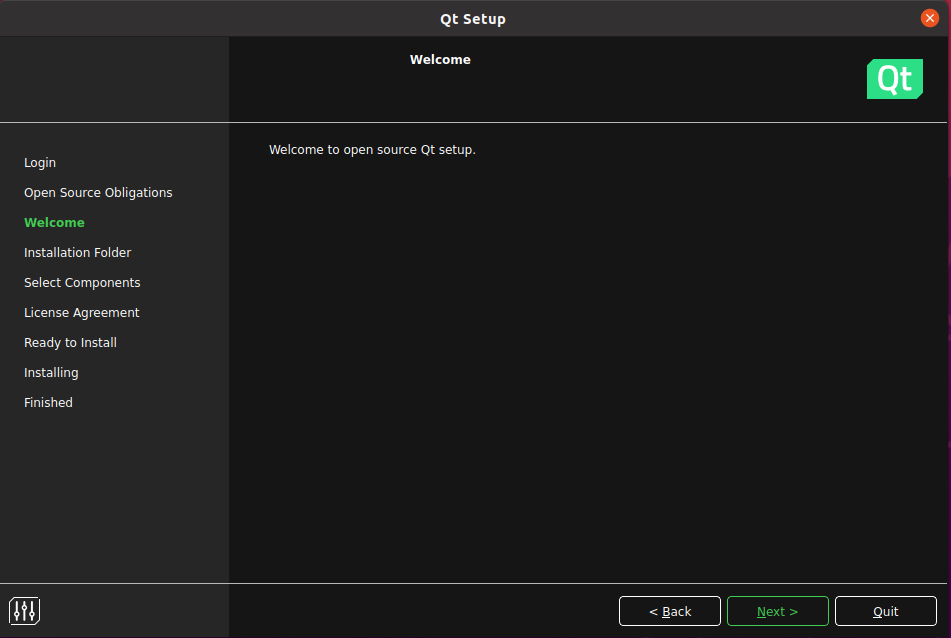
4.
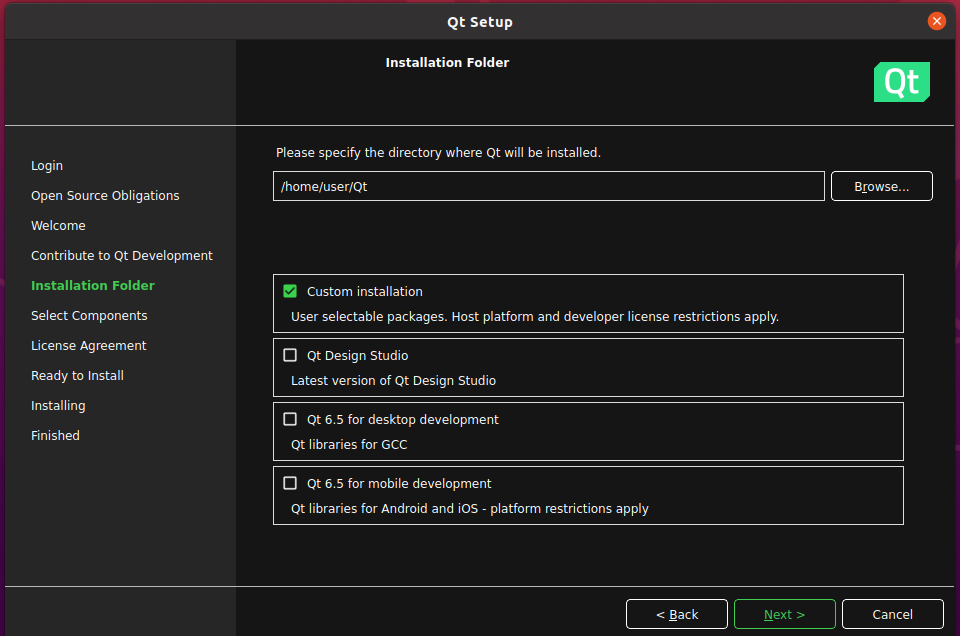
5.
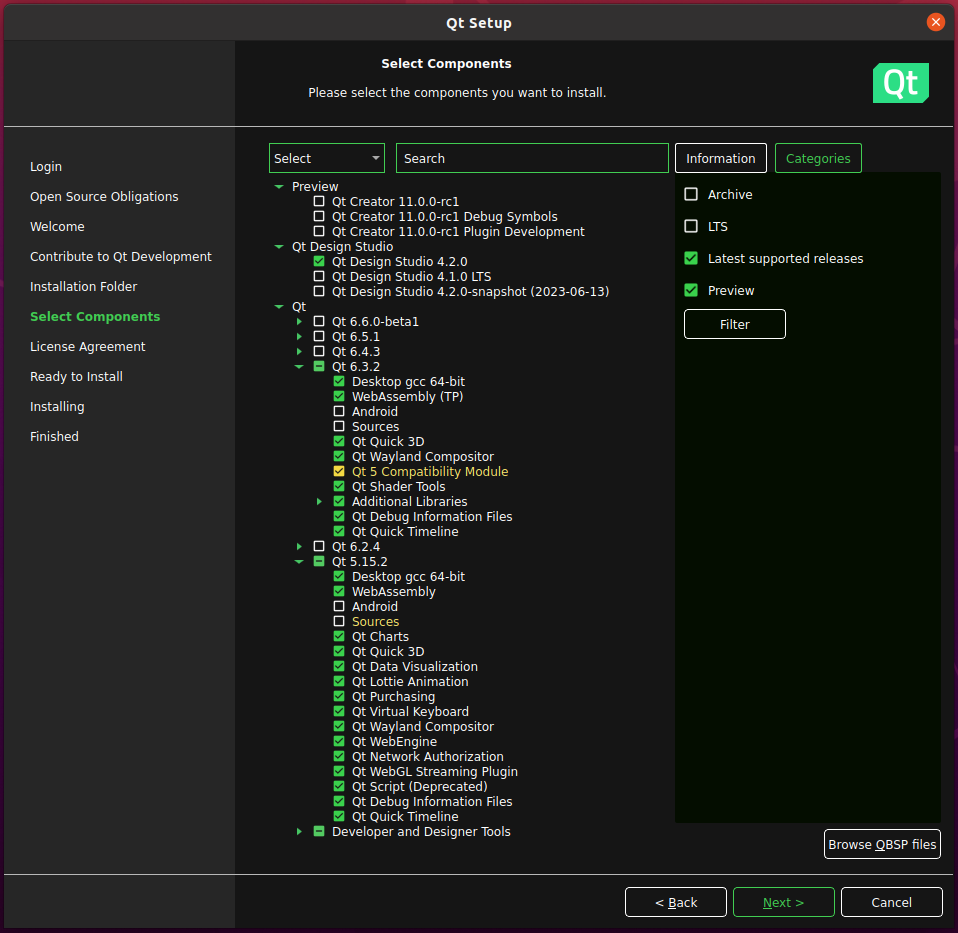
6.
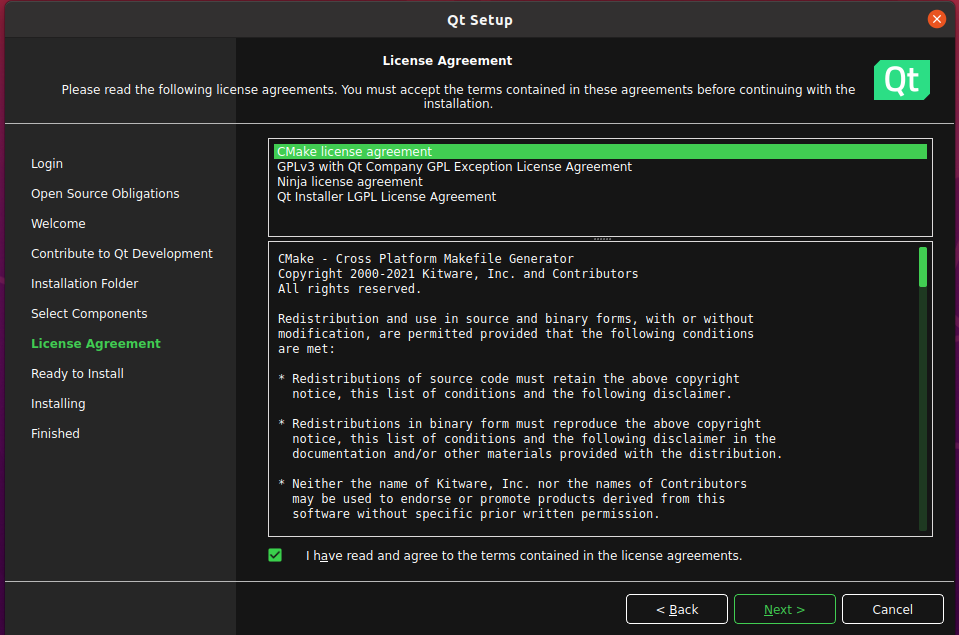
7.
8.
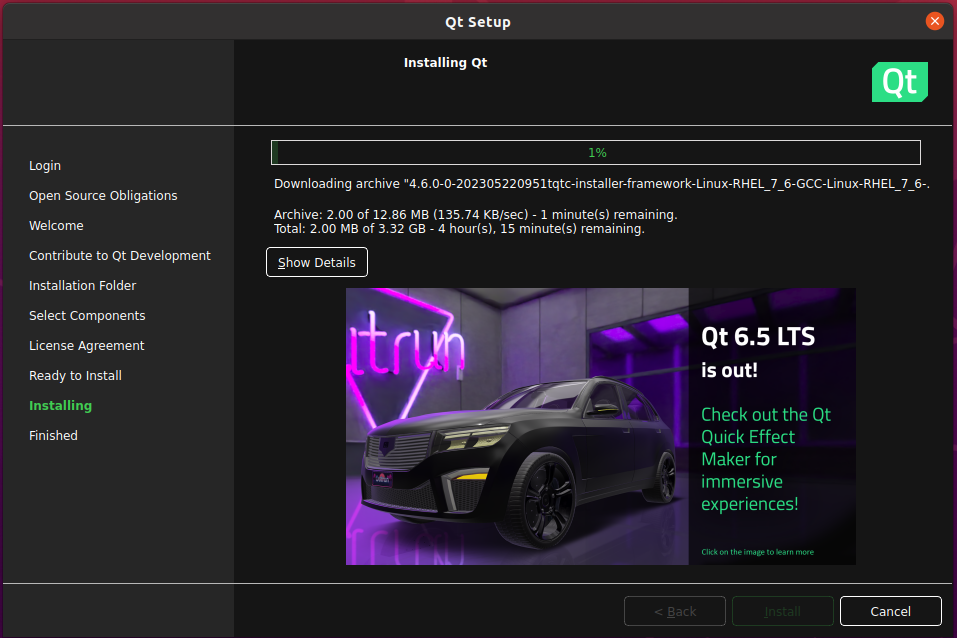
9.
.png?cb=36da53beacb24a5eb7f509131962f7f0)
Installing SDK/Toolchain on Ubuntu
C/C++/Qt Application Development Remote on Host PC, chapter "Installation SDK/Toolchain"
Qt Device Configuration
1.
Add a new Device in Qt Creator
(Menu)Tool→Edit→Preferences-->Devices (Add...)
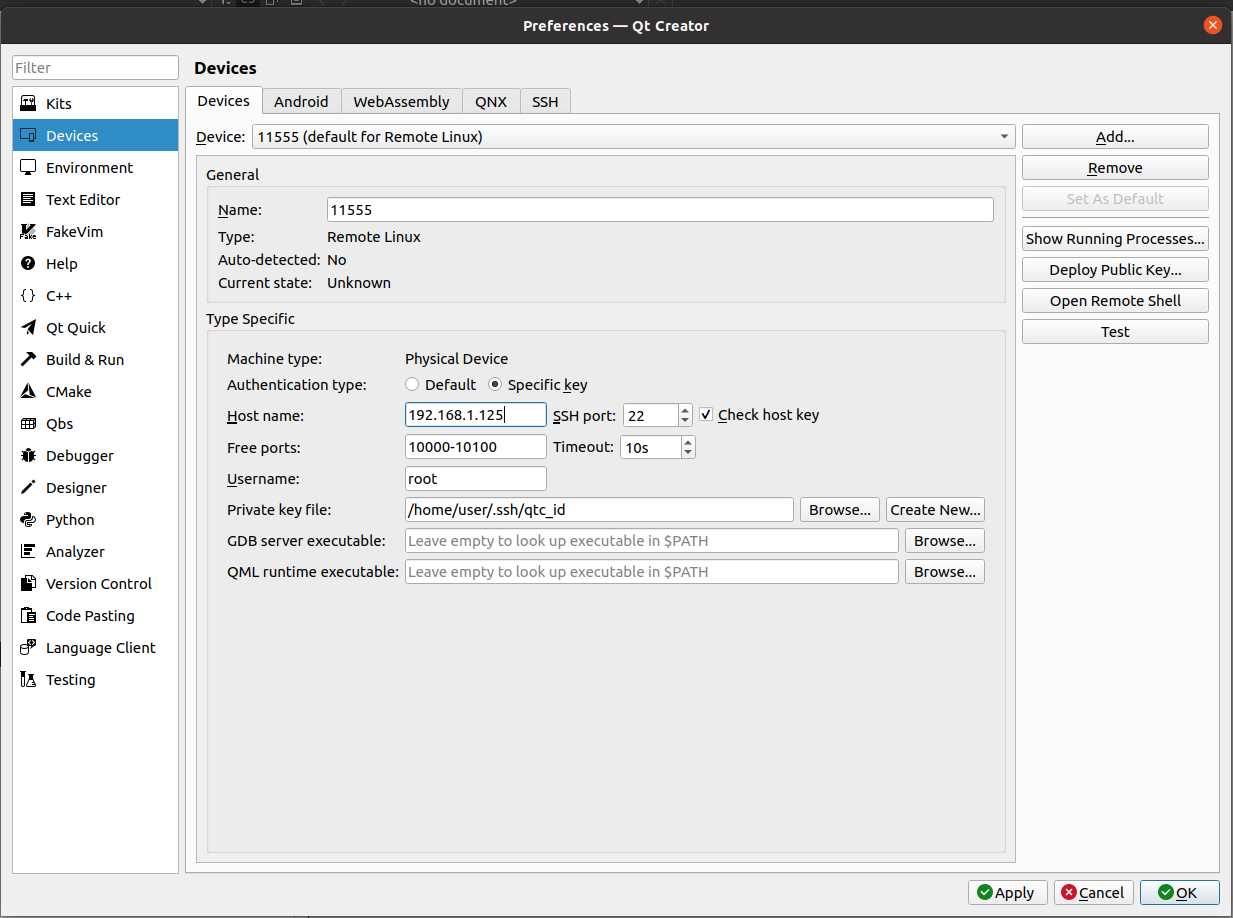
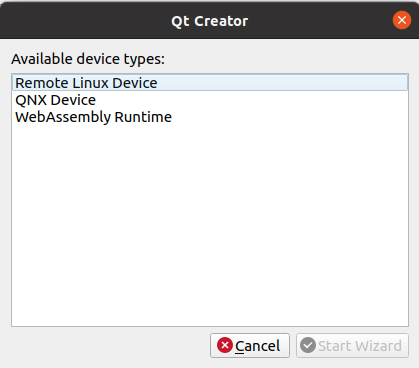
Hit "Test"-Button, when device is configured and connected → Device test finished successfully
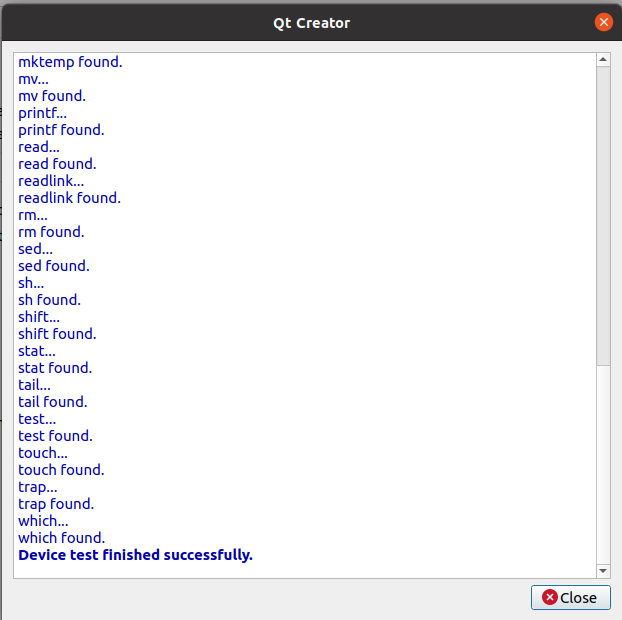
Device Connection
if the test fails:
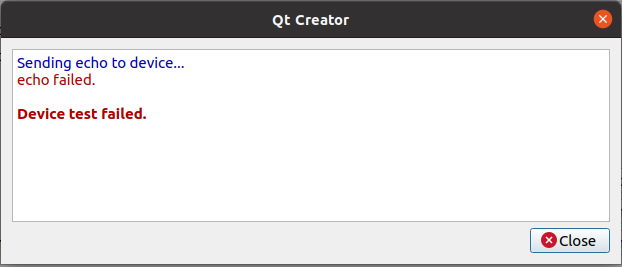
Open a Terminal Window and connect to your Device by ssh and follow the instructions:
For Example:
user@user-VirtualBox:~$ ssh root@192.168.1.125
The authenticity of host '192.168.1.125 (192.168.1.125)' can't be established.
ECDSA key fingerprint is SHA256:NB4W9+z32J/RPi5/6gON1hKUVt+4yX5X9KNRMtddZS4.
Are you sure you want to continue connecting (yes/no/[fingerprint])? yes
Warning: Permanently added '192.168.1.125' (ECDSA) to the list of known hosts.
user@user-VirtualBox:~$
2.
Adding a Compiler in Qt Creator
(Menu)Tool→Edit→Preferences-->Kits (Add...)
(Add GCC→C++) Name: 115550L G++ (name will be used later)
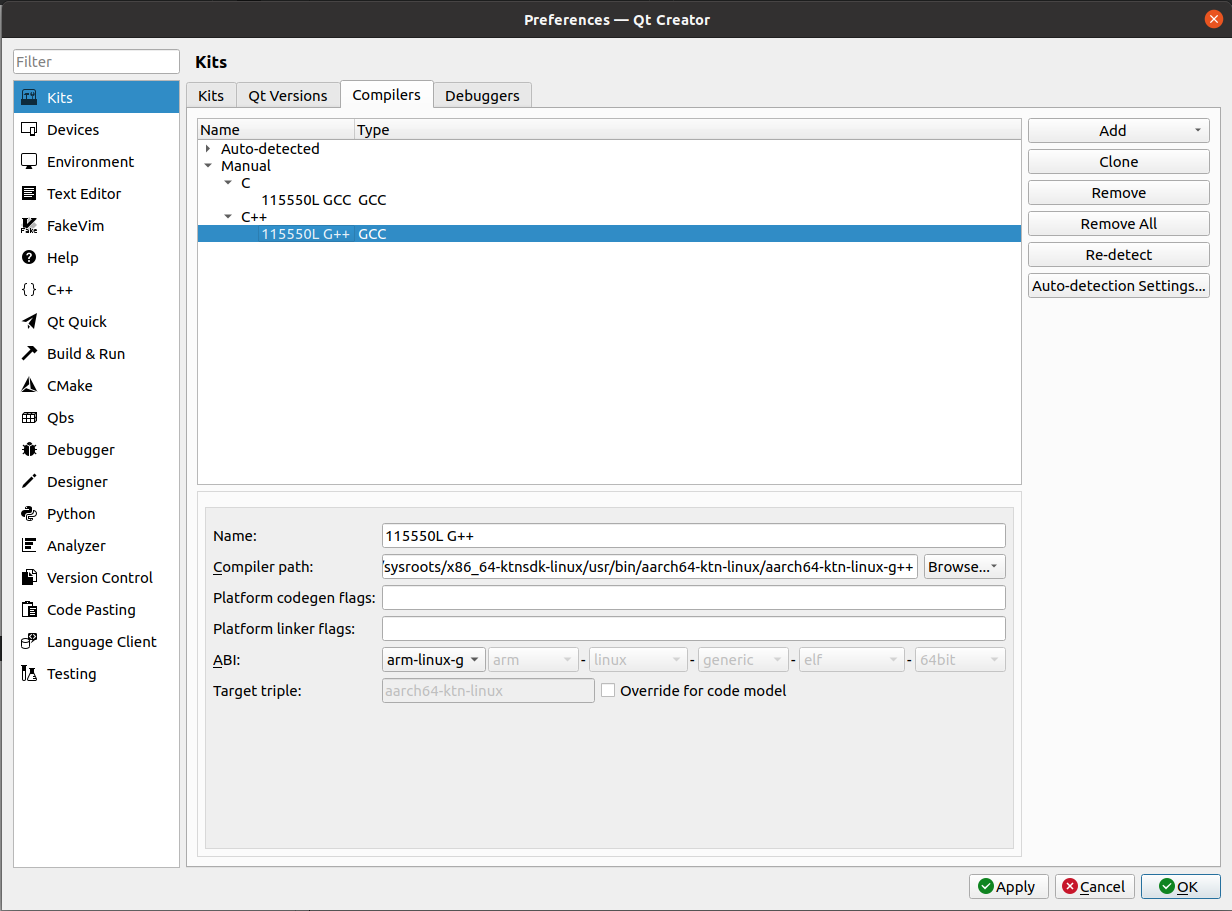
Compiler path: /home/user/sdk/11555/0L/sysroots/x86_64-ktnsdk-linux/usr/bin/aarch64-ktn-linux/aarch64-ktn-linux-g++
(Add GCC→C) Name: 115550L GCC (name will be used later)
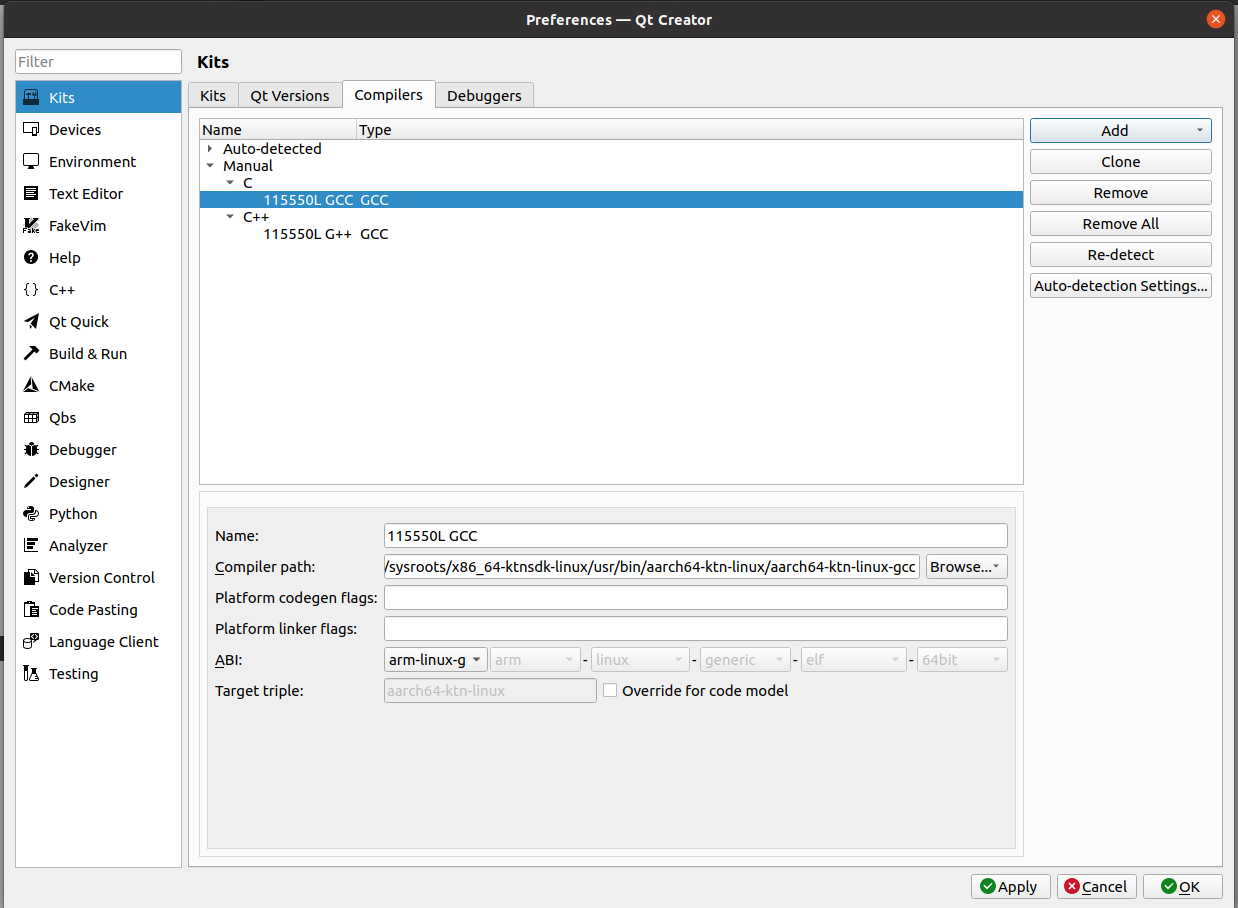
Compiler path: /home/user/sdk/11555/0L/sysroots/x86_64-ktnsdk-linux/usr/bin/aarch64-ktn-linux/aarch64-ktn-linux-gcc
3.
Adding a Debugger in Qt Creator
(Menu)Tool->Kits→Debuggers (Add...)
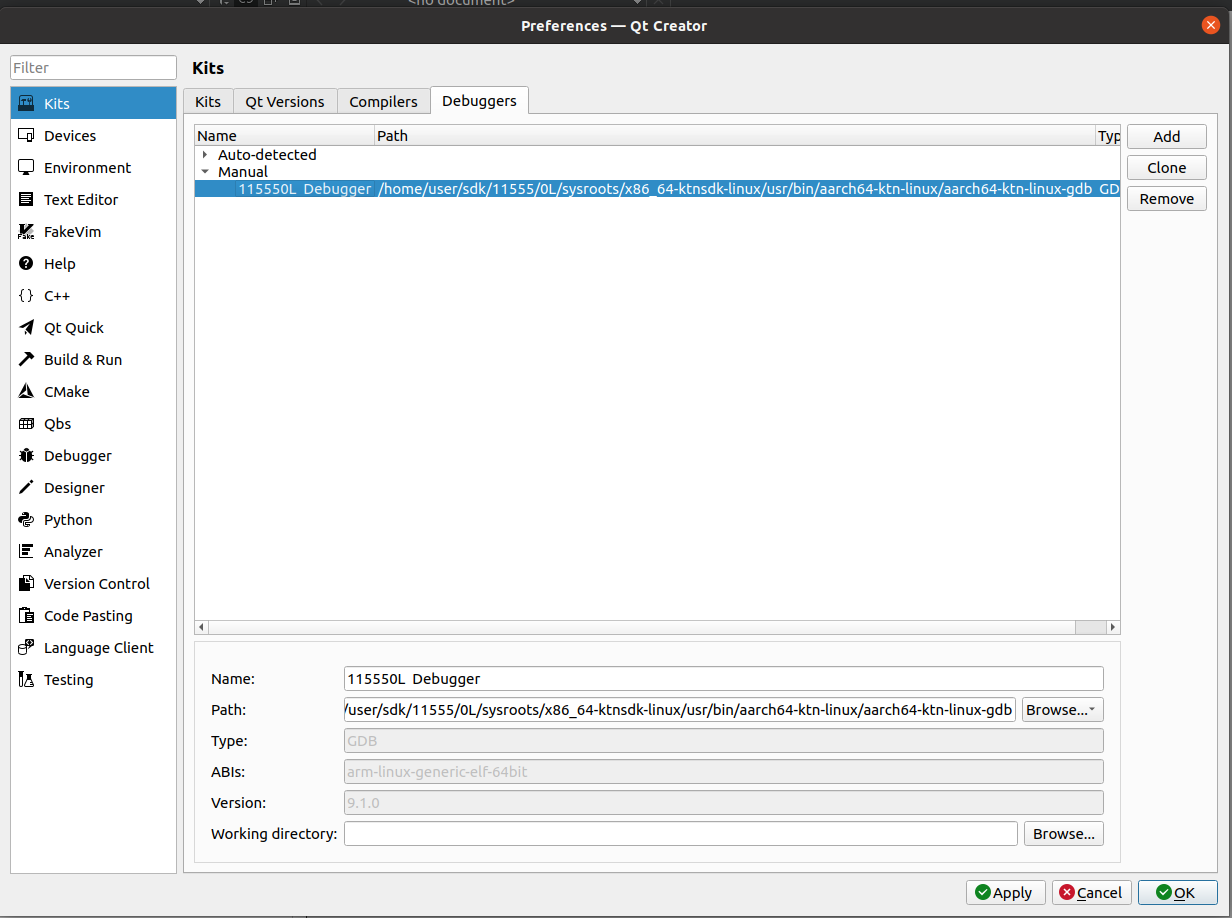
Name: 115550L Debugger (name will be used later)
Path: /home/user/sdk/11555/0L/sysroots/x86_64-ktnsdk-linux/usr/bin/aarch64-ktn-linux/aarch64-ktn-linux-gdb
4.
Adding a Qt Version
(Menu)Tool->Kits→Qt Versions (Add...)
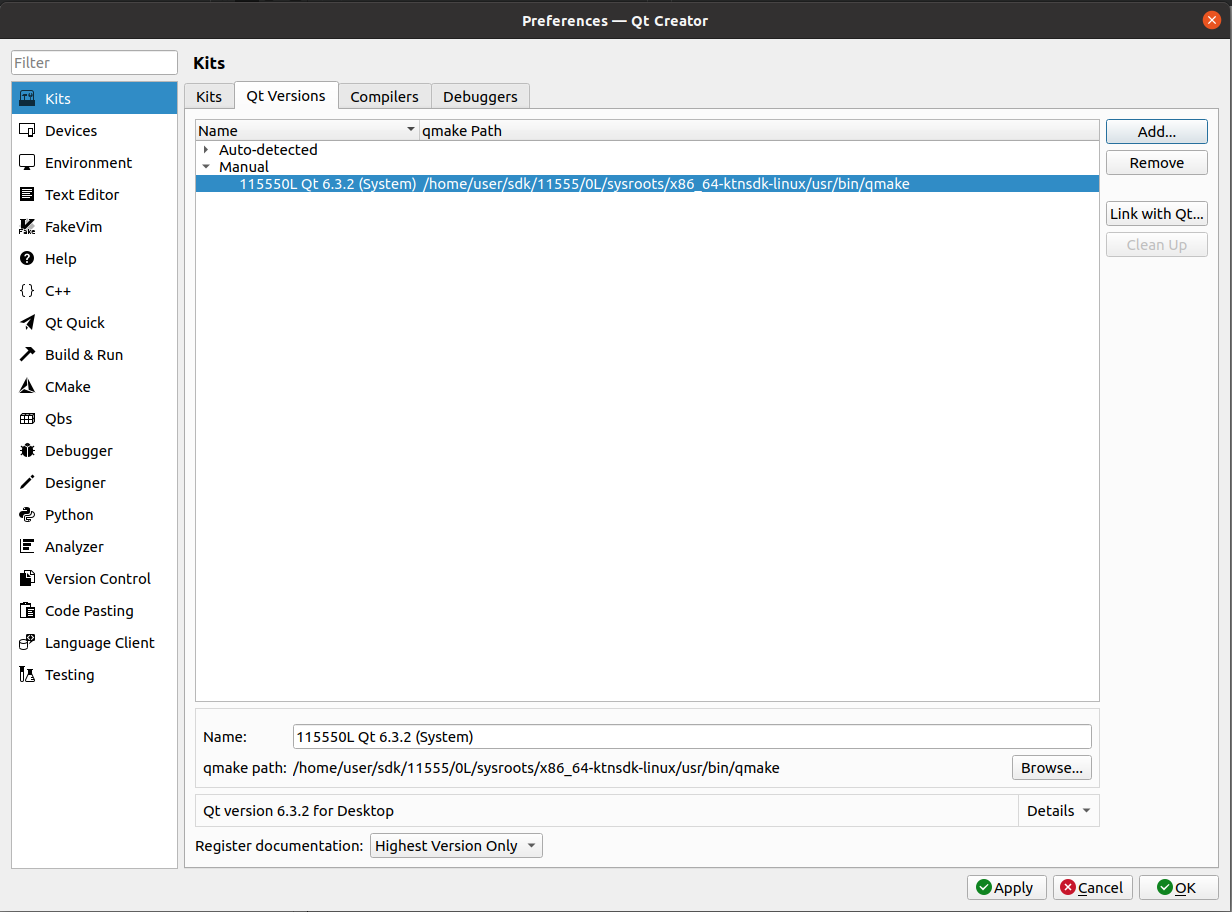
Name: 115550L Qt 6.3.2 (System) (name will be used later)
qmake location: /home/user/sdk/11555/0L/sysroots/x86_64-ktnsdk-linux/usr/bin/qmake
5.
Adding a Kit in Qt Creator
(Menu)Tool->Kits→Kits (Add...)
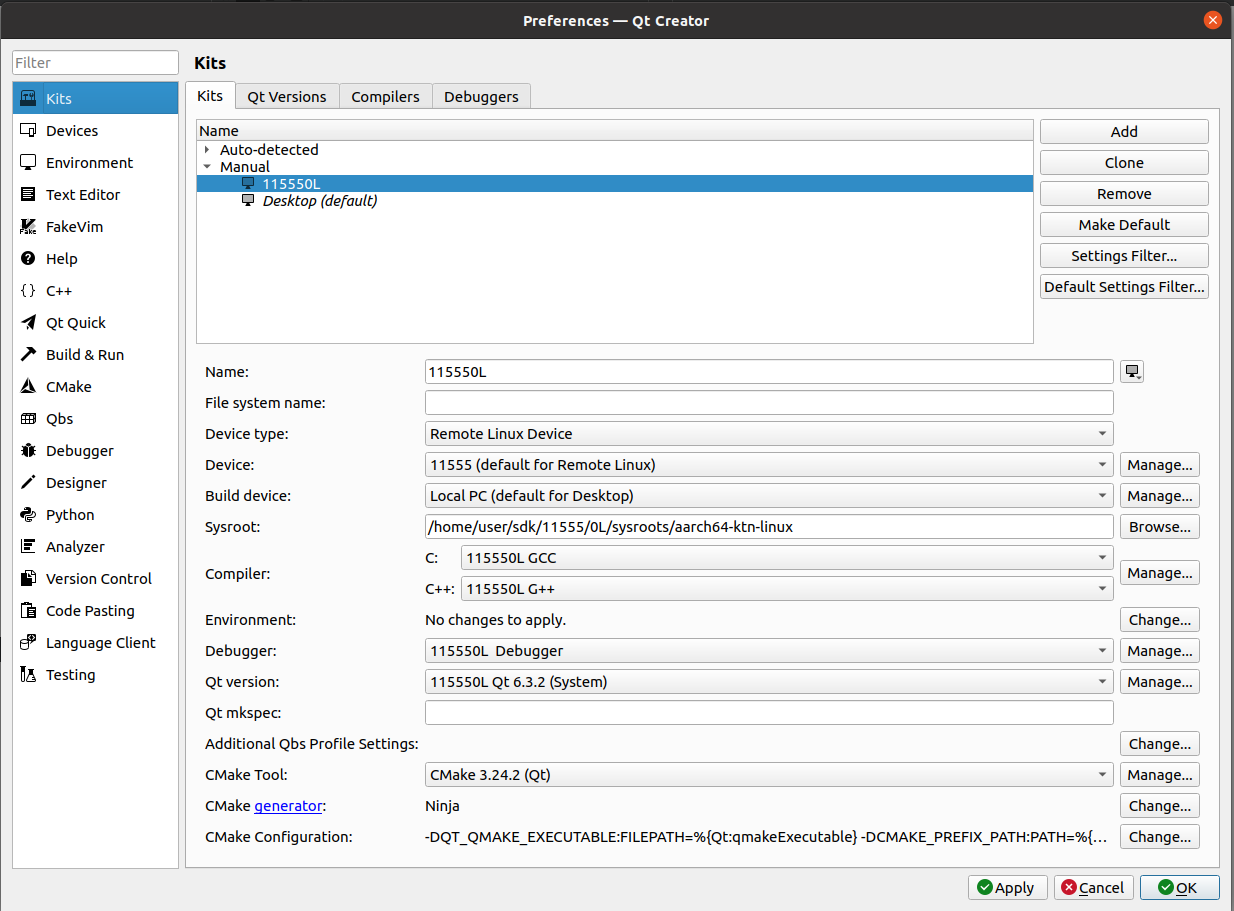
Sysroot: /home/user/sdk/11555/2L/sysroots/aarch64-ktn-linux
Qt Create New Project
1.
File→New File or Project... (Qt Widgets Application)
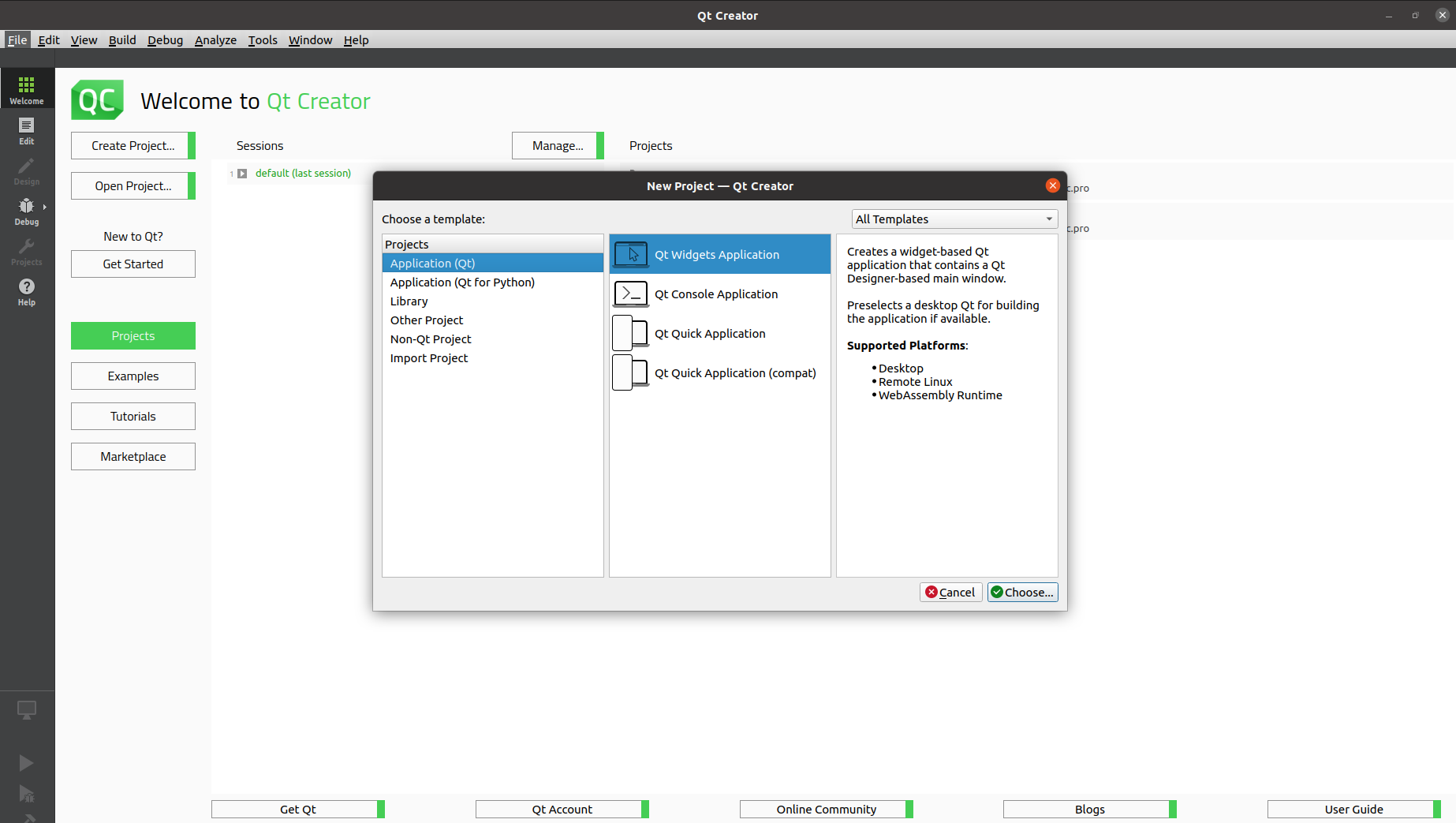
2.
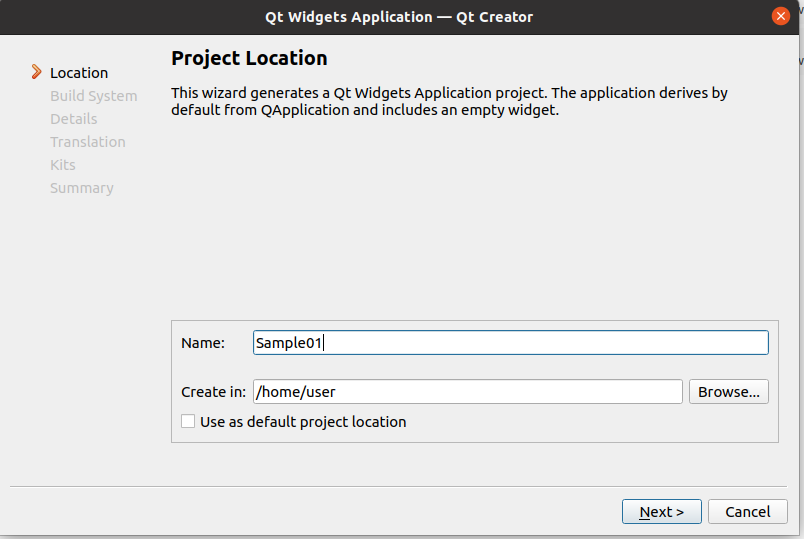
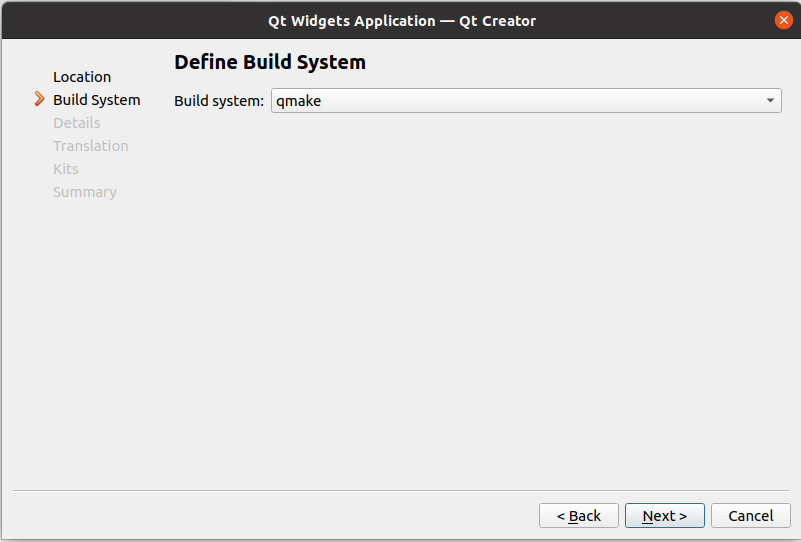
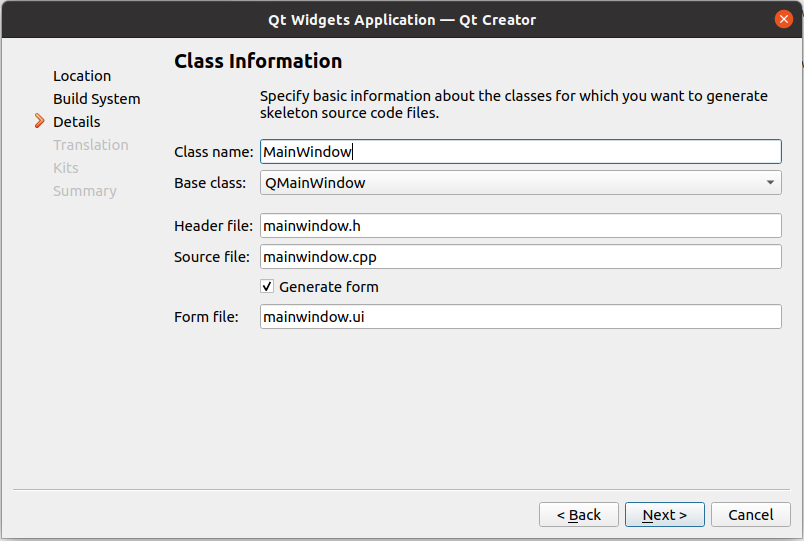
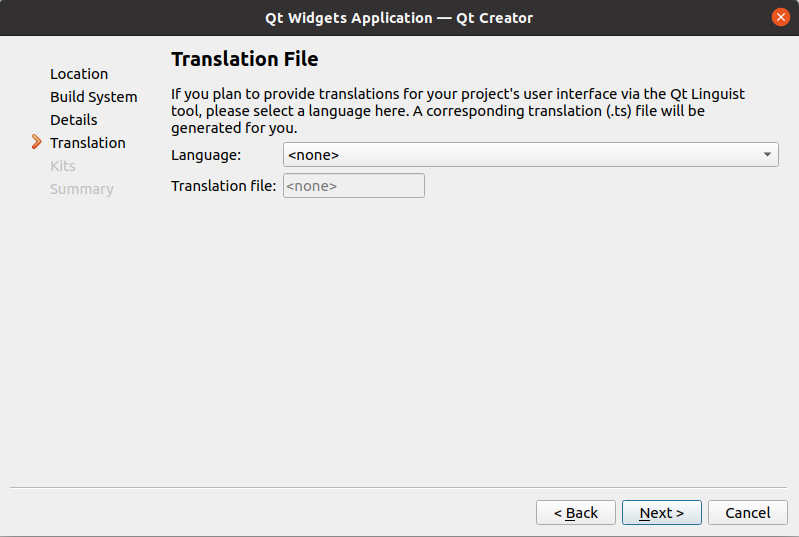
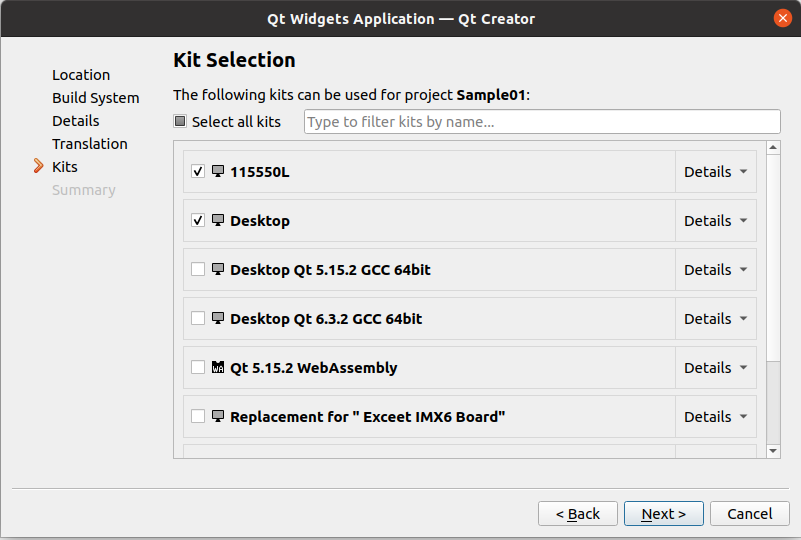
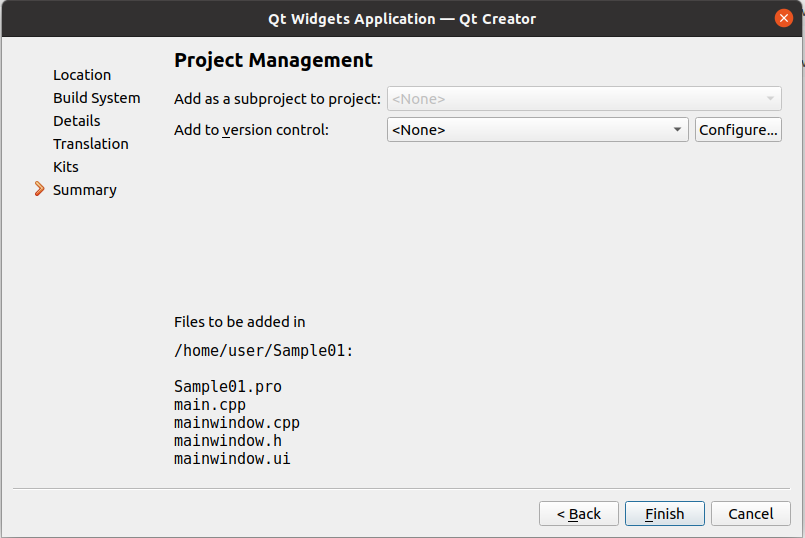
3.
Next->Finish
Additional Information:
https://www.qt.io/product/development-tools
Setup for imx6 and imx6ul Devices available soon.