
With the new software update concept there are the following different software components, which can be updated independently from each other:
-
Bootloader
-
Bootloader Environment Variables
-
Rescue OS
-
Software Image (also called productive system or „rootfs“)
-
SRAM/FRAM/RETAIN
If the new software update concept with the Rescue OS is already installed on your device, we recommend you to proceed as in the following "Case 1" for a safe update.
If the new software update concept with the Rescue OS is not yet installed on your device, you must perform the steps according to the following "Case 2”.
To find out whether your installed software version already includes the new update concept with Rescue OS, check the chapter SWUPDATE.
As far as possible, no changes are made in the bootloader and the Rescue OS, and they do not normally have to be reinstalled. All changes in the bootloader and Rescue OS are documented in the version report, which is stored in the blog. If an update of the bootloader or Rescue OS is necessary, it will be pointed out.
Case 1:
Recommended standard procedure for a safe update
Safe Update with update of Software Image only, excl. Rescue OS + Bootloader + Bootloader Environment Variables + SRAM/FRAM/RETAIN
This case describes a safe update of the software image (productive system), excluding bootloader, bootloader environment variables, Rescue OS and SRAM/FRAM/RETAIN.
If during the update the power supply is interrupted or another error occurs, the system can always restart at least with the Rescue OS and the update can be repeated.
The update can be performed via a microSD card, a USB stick or via the network (remote access).
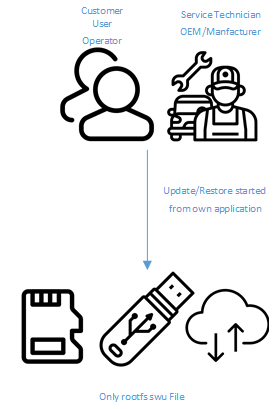
Preconditions
The new software update concept with the Rescue OS is already installed on the device.
Creating the safe backup
-
Do a backup of the software image (productive system „rootfs“) excl. Rescue OS and bootloader,
via the terminal or a ssh connection command: swu-create --list=rootfs --yes --logdir=/run/media/sda /run/media/sda/myRootfs.swu -
The device reboots into the the Rescue OS on your device and executes the backup process.
-
After the backup the device reboots automatically into to the productive system „rootfs“.
Restoring the safe backup
-
Copy the „SWU“ file on a microSD card , or an USB stick.
-
Insert the micro SD, or USB stick on the device and start the update via the terminal or a ssh connection command: swu-update -i /run/media/sda/myRootfs.swu
Or you can do an update via the system configuration and the backup/restore menu and select the correct „SWU“ file and start the restore function. -
The device reboots into the the Rescue OS on your device and executes the update process.
-
After the update the device reboots automatically into to the updated system.
Important note
In this case, the bootloader, the bootloader environment variables, the Rescue OS and SRAM/FRAM/RETAIN on the device are not replaced.
Setting up and using a swupdate network server
-
Set up a server with the supported protocol http, https or ftp
-
Upload your swu files to the server.
-
Start the update via the terminal or a ssh connection command: swu-update
-d "-e -u [server url]/[swu file name]"
Case 2:
Backup/restore complete software system with rescue system via microSD card
This case describes a complete system update incl. Bootloader, Rescue OS and software image (productive system „rootfs“) via microSD card.
This case is used in the following situations:
-
Backup/restore of a complete software system, including bootloader, bootloader environment variables, rescue system, productive system and application data
-
The software system on a device is corrupt and does not boot anymore , and the complete software system hast to be re-installed
-
First installation of the complete software system with the new software update concept.
To ensure a safe update of the complete system incl. bootloader and Rescue OS, it should always be performed with a microSD card with an installed RescueCard system.
A system update with the microSD card with an installed RescueCard system always works, even if the software on the target device is damaged.
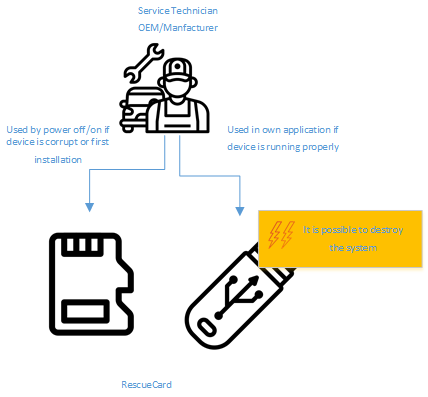
Creating the RescueCard
-
Do a backup of the complete software system with the productive system „rootfs“, Rescue OS, bootloader and the bootloader environment variables via the backup/restore function in the system configuration menu
or via the terminal or a ssh connection command: swu-create --list=bootenv,bootloader,rescue,rootfs --yes --log=/run/media/sda /run/media/sda/myCompleteSystem.swu -
The device reboots into the the rescue OS on your device and executes the backup process.
-
After the backup the device reboots automatically into to the productive system „rootfs“.
-
With this complete backup file myCompleteSystem.swu create a RescueCard for a microSD card.
-> see description „ creating RescueCard“
Restoring with the RescueCard
-
Write your rescue image to a microSD card with the USB Image Tool.
-
Insert the microSD card into the device
-
Power up your device.
-
The device starts the livesystem on the microSD card and executes the update process.
-
After the update the device reports a successful installation.
-
Power down your device.
-
Remove the microSD card.
Important notes
Because the bootloader and Rescue OS are also replaced during the complete system update, the software system can be damaged if an error occurs during the update.
A system update with the microSD card with installed RescueCard always works, even if the software on the target device is damaged.
Updating the complete software system via USB stick or via network is strongly not recommended, because an update via these media is very error-prone and can lead to a corrupt software system.
Using SWUPDATE directly in your own application:
CODESYS:
With CODESYS, the code from the enclosed example can be added.
All other applications:
With all other applications, simply call the appropriate Linux command swu-create and swu-update.
Examples:
Creating a safe backup: swu-create --list=rootfs --yes --log=/run/media/sda /run/media/sda/mybackup.swu
Restoring a safe backup: swu-update -e stable,update -i /run/media/sda/mybackup.swu --log=/run/media/sda/
Executing this samples, will reboot your device into the installed rescue OS.
Using a usb stick or microSD card for booting into rescueOS with several swu files for a installation
A simple trick allows you to boot directly into the rescueOS and provide a selection of SWU files.
The desired SWU file can then simply be selected and installed in the RescueGUI.
Creating the manual stick
-
Take a empty protable disk (microSD card or USB stick).
-
create a file named startup.sh on the portable disk.
-
Open the file with Notepad++ and set the file format to Unix (LF).
-
Add following content:
echo "starting rescue"
setenv bootentry rescue -
Close Notepad++
-
Add SWU files to the portable disk.
Restoring with the manual stick
-
Insert the prepared stick.
-
Power up your device.
-
The device starts the rescueOS with the RescueGUI.
-
Use the Install button to show the available SWU Files.
-
Select a file use the START button to execute the update process.
-
After the update the device reports a successful installation.
-
Power down your device.
-
Remove the prepared stick.