Visual Studio Code (VS Code) is a powerful, modern, open-source code editor that can be used to develop and debug C/C++ applications on Variscite System on Modules.
This guide demonstrates how to create and debug a C++ application using VS Code on the KCH Device.
The Visual Studio Code WSL extension lets you use the Windows Subsystem for Linux (WSL) as your full-time development environment right from VS Code. You can develop in a Linux-based environment, use Linux-specific toolchains and utilities, and run and debug your Linux-based applications all from the comfort of Windows.
The extension runs commands and other extensions directly in WSL so you can edit files located in WSL or the mounted Windows filesystem (for example /mnt/c) without worrying about pathing issues, binary compatibility, or other cross-OS challenges.
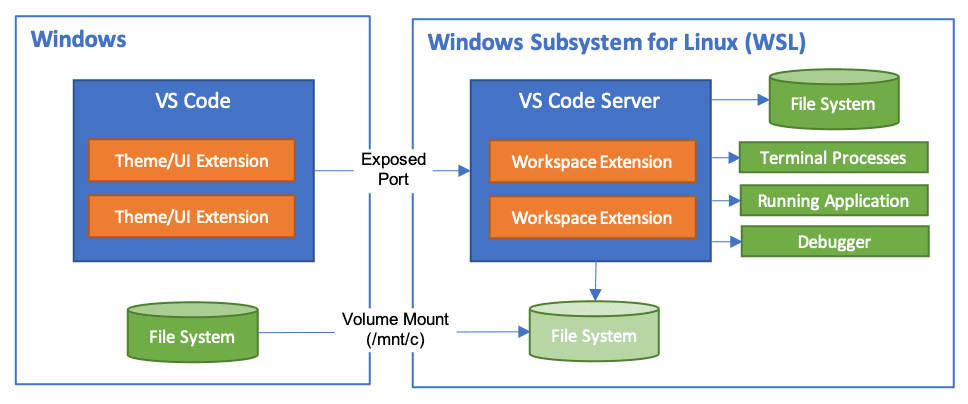
This lets VS Code provide a local-quality development experience — including full IntelliSense (completions), code navigation, and debugging — regardless of where your code is hosted.
Preparing Development PC
Install Visual Studio Code
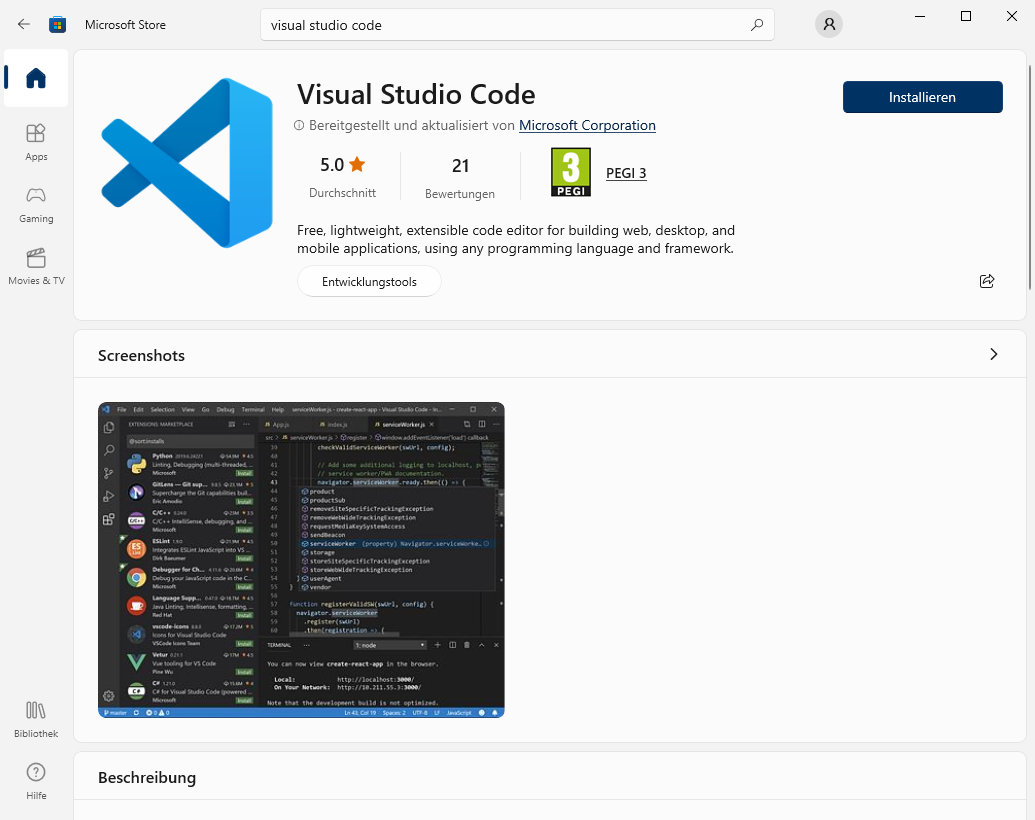
Open the Microsoft Store App and install Visual Studio Code
Install Visual Studio Code Extensions
Initially, if you haven’t used VSCode for C++ projects on WSL, you will need to install a few extensions, so everything runs smoothly. For this reason, the list below contains the names of all extensions you need to install, and the reason for each one.
-
Remote WSL: This extension allows you to open workspaces from your WSL installation. Once installed, you can navigate to the directory you want in your WSL terminal, and simply type
code .to open it as a VSCode workspace. -
CMake Tools: This Microsoft extension enables the support for CMake projects in VS Code, it will allow you to configure and build your CMake projects.
-
C/C++: Enables C++ language support for Visual Studio Code (syntax highlighting, etc).
-
C/C++ Extension Pack: Includes some of the extensions mentioned in this section, and a few more. Interestingly, this extension pack contains all of the “nice to have” extensions for C++ development, such as CMake syntax highlighting, C++ syntax colour schemes, etc.
-
C/C++ Extension UI Themes: VS Code has since provided an API for semantic colorization. The C/C++ Extension has transitioned from its own implementation to this new API. These themes now include colors for some of the new semantic token scopes.
-
Makefile Tools: This extension provides IntelliSense configurations to the VS Code C/C++ Extension for Makefile projects. It also provides convenient commands to build, debug, and run your targets.
Finally, if you haven’t installed extensions in VSCode before, simply click on the extension UI button 
Enable WSL
Windows Subsystem for Linux (WSL) is an optional feature on Windows 10. You can enable it through the Windows Features dialog.
Windows Features dialog
In the Windows search bar, type 'features' to bring up the Turn Windows Features on and off dialog. Scroll down and check Windows Subsystem for Linux.
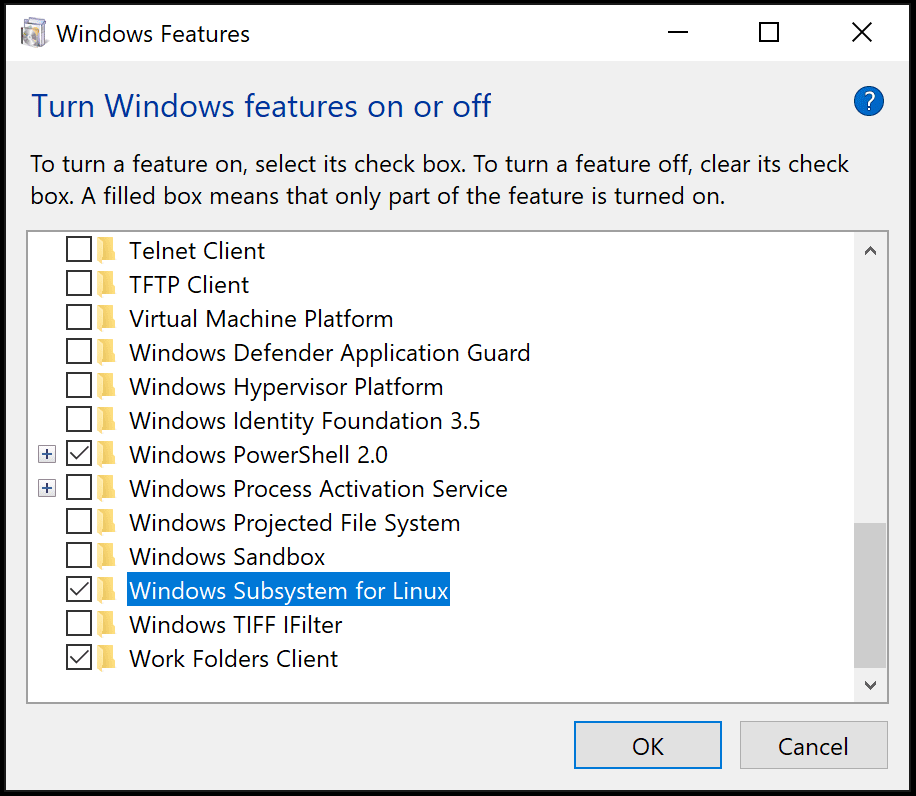
Select OK and you will be prompted to restart Windows.
Install Ubuntu on WSL
You install Linux distributions for WSL from the Microsoft Store. You can use the store app, or search for a Linux distro in the Windows search bar. Choose the Linux distribution you want to install (for example Ubuntu) and follow the prompts.
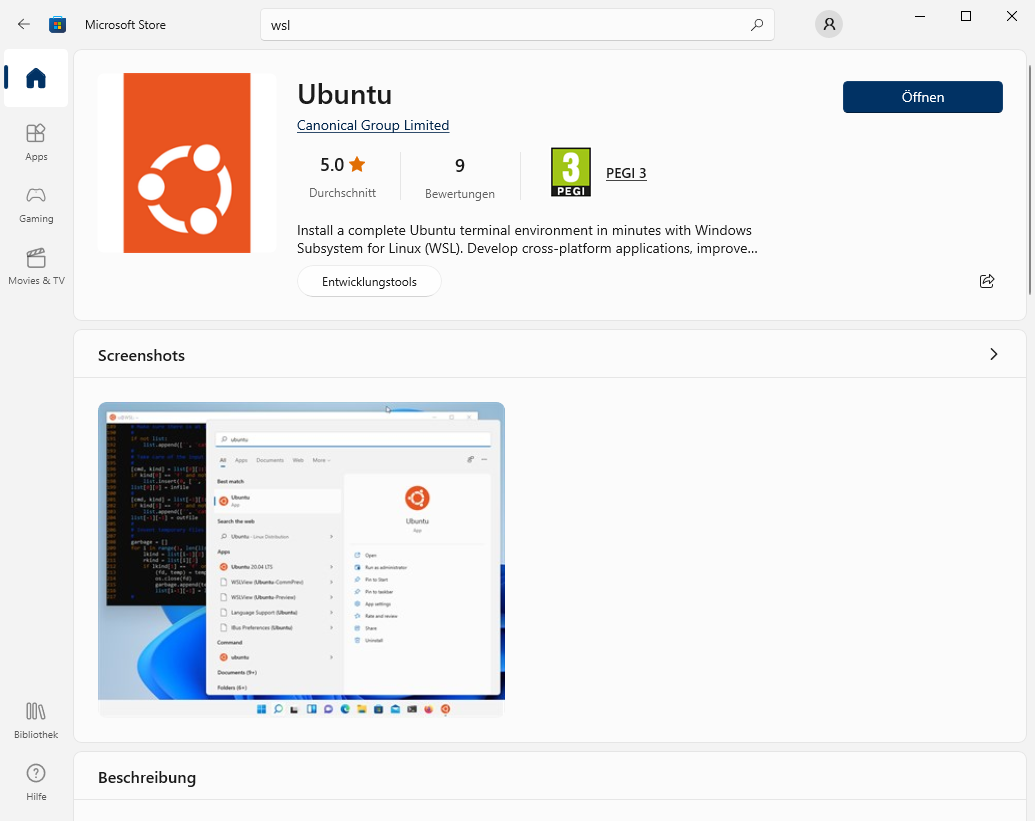
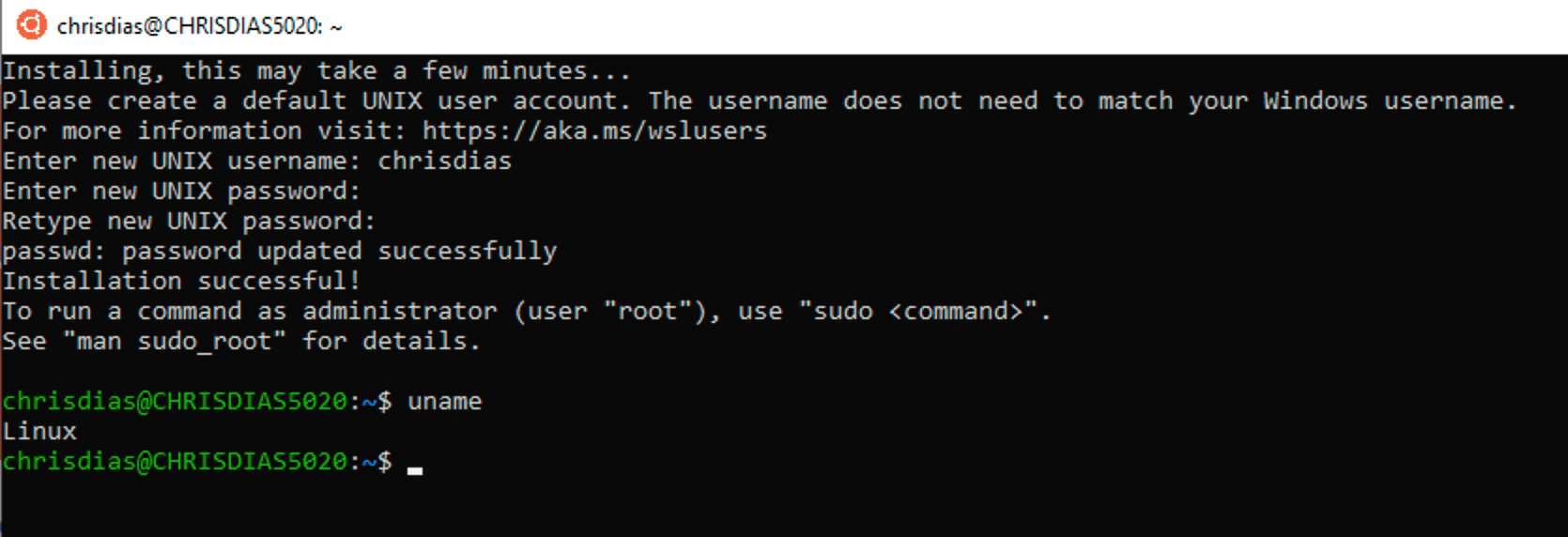
And when done, Launch the Linux over the Start Menu to get started. This will open a Linux terminal and complete the installation. You'll need to create a user ID and password since you are setting up a full Linux instance. You are now running Linux on Windows.
Install SDK on Ubuntu
All SDK/Toolchain are available under:
ftp://kontron_pub:WENZtA6i@ftp.kontron.ch/WebPanel/SDK/
|
Files on FTP Server |
Description |
|---|---|
|
exceet-glibc-i686-arm-toolchain-00937_0C.tar.xz |
Linux SDK/Toolchain for Windows Development Tools for imx6 Devices |
|
kch-glibc-x86_64-meta-toolchain-qt6-armv7at2hf-neon-40099086-01021-v0B-toolchain-0B.sh |
Linux SDK/Toolchain for Linux Development Tools for imx6 Devices |
|
kch-glibc-x86_64-meta-toolchain-qt6-aarch64-11555-01013-v0J-toolchain-0J.sh |
Linux SDK/Toolchain for Linux Development Tools for imx8mm Devices |
The Windows Disks are automaticaly mounted in the folder "/mnt/".
Install the SDK directly from the Terminal (for example: "/mnt/<windows path to sdk>")
-
Download the Linux SDK depending your device.
-
Set the SDK installation file executable using the commandline: chmod +x <Linux SDK File>
-
Install the SDK File using the commandline: ./<Linux SDK File>Choose a installation directory for example "/home/<user>/sdk/<sdkname>"

Install gdb on Ubuntu
For Remote Debugging on your Device install the gdb and sshpass.
sudo apt update
sudo apt install gdb-multiarch sshpass
Preparing Device
Install gdbserver
For Remote Debugging on your Device install the gdb server.
The device must have an active internet connection.
opkg update
opkg install gdbserver
Create, cross compile, and run a new "Hello, World!" project with g++ and gcc
Open a new terminal, create an empty project directory and open VS Code:
$ mkdir ~/var-hello-world-cpp
$ cd ~/var-hello-world-cpp
$ code .
This will launch VS Code with ~/var-hello-world-cpp as working directory (which is currently empty):
Now you see a WSL indicator in the bottom left corner, and you'll be able to use VS Code as you would normally!
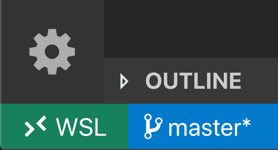
That's it! Any VS Code operations you perform in this window will be executed in the WSL environment, everything from editing and file operations, to debugging, using terminals, and more.
Next, we will create the following files:
|
main.cpp |
Source code for the demo program hello.bin |
|
Makefile |
Makefile to cross compile main.cpp to hello.bin |
|
var-deploy-gdb.sh |
Script to deploy the application and start the remote gdbserver. |
|
.vscode/settings.json |
VS Code file to configure global environment variables for the SDK/toolchain |
|
.vscode/tasks.json |
VS Code file to override or add new tasks. Runs |
|
.vscode/c_cpp_properties.json |
VS Code file to configure include path for IntelliSense. |
|
.vscode/launch.json |
VS Code file to configure debugging environment using the C/C++ extension |
To create a new file or folder in VS Code, right click in the VS Code explorer view and select New File or New Folder:
Create a new file called main.cpp:
main.cpp:
#include <stdio.h>

int main(int argc, char *argv[]) {
    printf("Hello, World!\n");
    return 0;
}
Create a new Makefile to build hello.bin:
Makefile:
all: main.cpp
	$(CXX) $(CXXFLAGS) -Og main.cpp -g -o hello.bin
clean:
	rm -f hello.bin
Create a new folder named .vscode. Then, create a new file .vscode/settings.json
.vscode/settings.json:
{
	"KCH": {
		/* Target Device Settings */
		"TARGET_IP":"192.168.1.125",

		/* Project Settings */
		"PROGRAM":"hello.bin",

		/* Yocto SDK Configuration */
		"ARCH":"aarch64-ktn-linux",
		"OECORE_NATIVE_SYSROOT":"/home/user/sdk/115550L/sysroots/x86_64-ktnsdk-linux",
		"SDKTARGETSYSROOT": "/home/user/sdk/115550L/sysroots/aarch64-ktn-linux",

		/* Yocto SDK Constants */
		"CC_PREFIX": "${config:KCH.OECORE_NATIVE_SYSROOT}/usr/bin/${config:KCH.ARCH}/${config:KCH.ARCH}-",
		"CXX": "${config:KCH.CC_PREFIX}g++ --sysroot=${config:KCH.SDKTARGETSYSROOT}",
		"CC": "${config:KCH.CC_PREFIX}gcc --sysroot=${config:KCH.SDKTARGETSYSROOT}",
	}
}
The table below describes the global variables in settings.json. They can be accessed in other json files, for example ${config:KCH.TARGET_IP}:
|
TARGET_IP |
The IP Address of the target device |
|
PROGRAM |
Must match the name of the binary generated by Makefile |
|
ARCH |
Architecture prefix for gcc, g++, gdb, etc. Align with CXX variable set by /home/<user>/<sdk>/<sdkname>/environment-setup-<arch>-ktn-linux |
|
OECORE_NATIVE_SYSROOT |
Align with OECORE_NATIVE_SYSROOT variable set by /home/<user>/<sdk>/<sdkname>/environment-setup-<arch>-ktn-linux |
|
SDKTARGETSYSROOT |
Align with SDKTARGETSYSROOT variable set by /home/<user>/<sdk>/<sdkname>/environment-setup-<arch>-ktn-linux |
|
CC_PREFIX |
Full path to toolchain gcc, g++, etc binaries. |
|
CXX |
Path to cross g++ binary and sysroot |
|
CC |
Path to cross gcc binary and sysroot |
Create a new file .vscode/tasks.json. tasks.json has three root objects:
-
options: Define CC and CXX environment variables for the Makefile.
-
presentation: Configures the behavior of VS Code's integrated Terminal for all tasks.
-
tasks: An array of task configurations. The example below creates a single 'build task that runs the Makefile when the VS Code build task is executed.
.vscode/tasks.json:
{
  "version": "2.0.0",
  /* Configure Yocto SDK Constants from settings.json */
  "options": {
      "env": {
          "CXX": "${config:KCH.CXX}",         /* Used by Makefile */
          "CC": "${config:KCH.CC}",           /* Used by Makefile */
      }
   },
   /* Configure integrated VS Code Terminal */
   "presentation": {
      "echo": false,
      "reveal": "always",
      "focus": true,
      "panel": "dedicated",
      "showReuseMessage": true,
  },
  "tasks": [
    /* Configure launch.json (debug) preLaunchTask Task */
    {
        "label": "var-deploy-gdb",
        "isBackground": true,
        "problemMatcher":{
            "base": "$gcc",
            "background": {
                "activeOnStart": true,
                "beginsPattern":  "Deploying to target",
                "endsPattern":  "Starting GDB Server on Target"
            }
        },
        "type": "shell",
        "command": "sh",
        "args": [
            "var-deploy-gdb.sh",
            "${config:KCH.TARGET_IP}",
            "${config:KCH.PROGRAM}"
        ],
        "dependsOn": ["build"],
    },
    /* Configure Build Task */
    {
        "label": "build",
        "type": "shell",
        "command": "make clean; make -j$(nproc)",
        "problemMatcher": ["$gcc"]
    },
]
}
Create vscode/c_cpp_properties.json to configure the include path for IntelliSense.
.vscode/c_cpp_properties.json:
{
    "configurations": [
        {
            "name": "Linux",
            "includePath": [
                "${workspaceFolder}/**",
                "${config:KCH.SDKTARGETSYSROOT}/usr/include/**"
            ]
        }
    ],
    "version": 4
}
Create var-deploy-gdb.sh to deploy the application and start the remote gdbserver.
var-deploy-gdb.sh:
#!/bin/bash
readonly TARGET_IP="$1"
readonly PROGRAM="$2"
readonly TARGET_DIR="/home/root"

# Must match startsPattern in tasks.json
echo "Deploying to target"

# kill gdbserver on target and delete old binary
sshpass -p root ssh root@${TARGET_IP} "sh -c '/usr/bin/killall -q gdbserver; rm -rf ${TARGET_DIR}/${PROGRAM}  exit 0'"

# send the program to the target
sshpass -p root scp ${PROGRAM} root@${TARGET_IP}:${TARGET_DIR}

# Must match endsPattern in tasks.json
echo "Starting GDB Server on Target"

# start gdbserver on target
sshpass -p root ssh -t root@${TARGET_IP} "sh -c 'cd ${TARGET_DIR}; gdbserver localhost:3000 ${PROGRAM}'"
Create .vscode/launch.json to add a configuration for debugging using the C/C++ extension
.vscode/launch.json:
{
    "version": "0.2.0",
    "configurations": [{
        "name": "GDB debug",
        "type": "cppdbg",
        "request": "launch",
        "program": "${config:KCH.PROGRAM}",
        "args": [],
        "stopAtEntry": true,
        "cwd": "${workspaceFolder}",
        "environment": [],
        "console": "integratedTerminal",
        "MIMode": "gdb",
        "targetArchitecture": "arm64",
        "preLaunchTask": "var-deploy-gdb",
        "setupCommands": [{
            "description": "Enable pretty-printing for gdb",
            "text": "-enable-pretty-printing",
            "ignoreFailures": true
        }],
        "miDebuggerPath": "/usr/bin/gdb-multiarch",
        "miDebuggerServerAddress": "${config:KCH.TARGET_IP}:3000",
    }]
}
Cross compile the project by selecting Terminal->Run Build Task... or entering Ctrl+Shift+B and selecting Build:
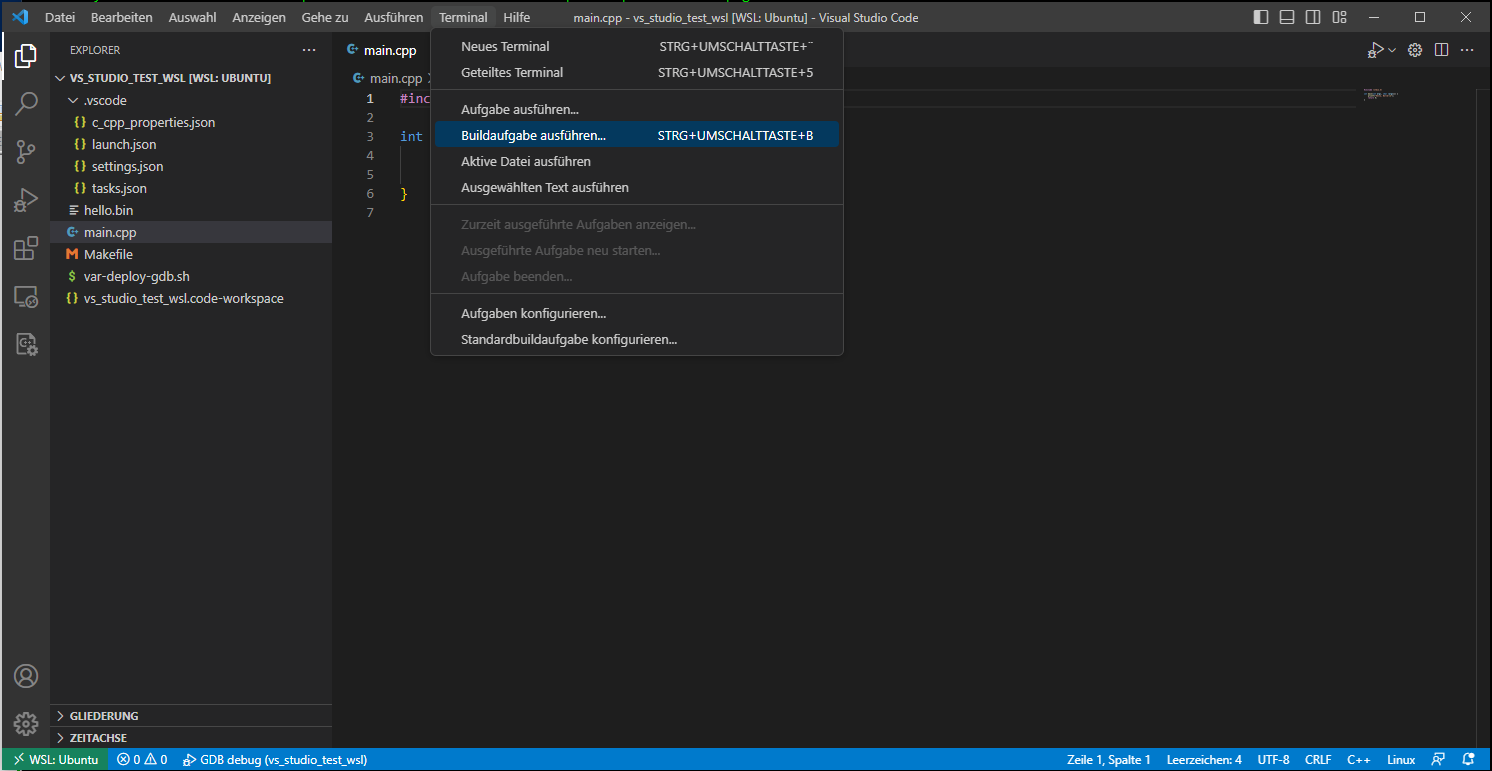
A new debugging session can be started by selecting Run->Start Debugging or by pressing 'F5' on the keyboard. VS Code will switch to the debug perspective and launch a gnome-terminal running gdbserver on the target device:
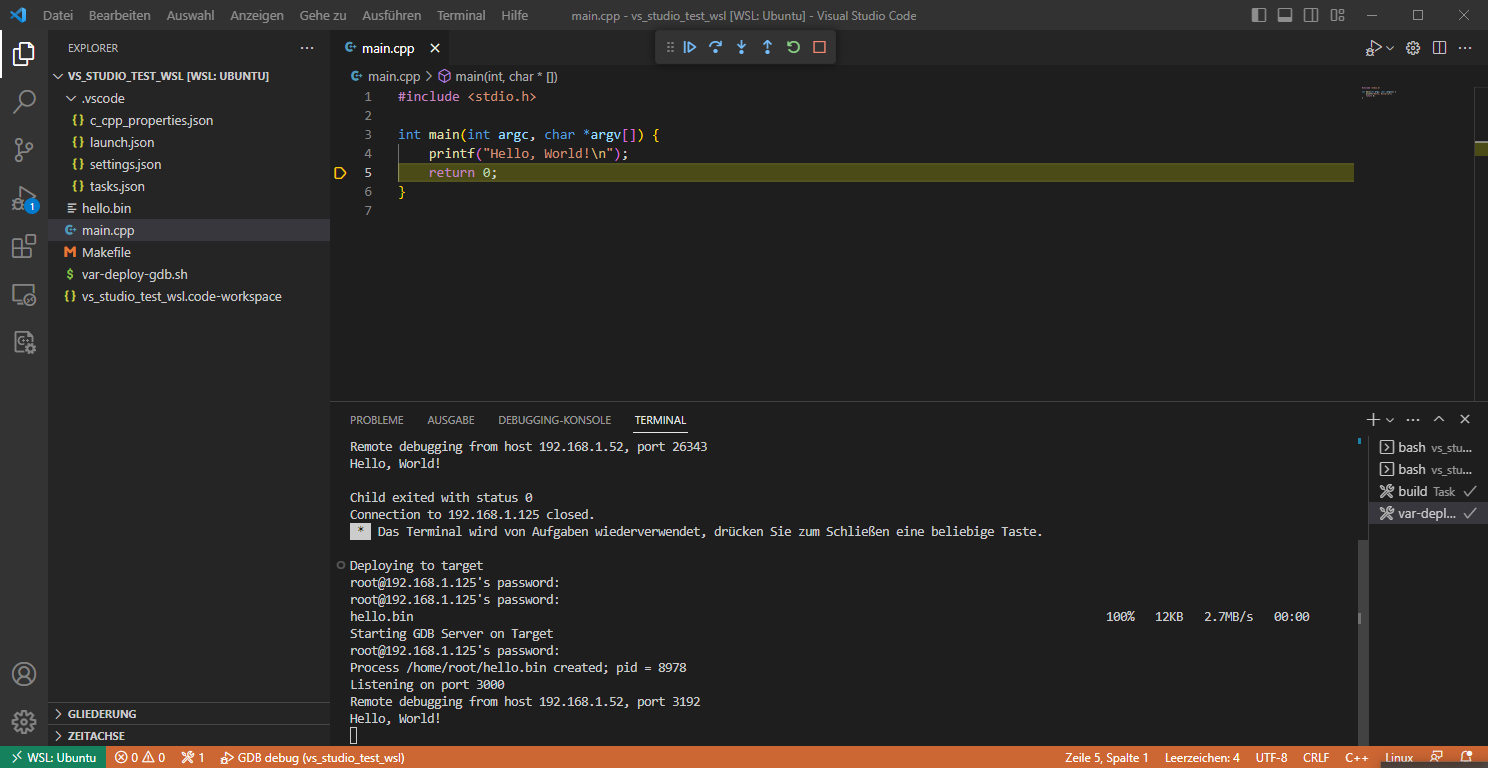
Example Project Source Code:
Create, cross compile, and run a new "Hello, World!" project with cmake
Open a new terminal, create an empty project directory and open VS Code:
$ mkdir ~/var-hello-world-cmake
$ cd ~/var-hello-world-cmake
$ code .
This will launch VS Code with ~/var-hello-world-cmake as working directory (which is currently empty):
Next, we will create the following files:
|
main.cpp |
Source code for the demo program hello.bin |
|
CMakeLists.txt |
CMakeLists to cross compile main.cpp to hello.bin |
|
var-deploy-gdb.sh |
Script to deploy the application and start the remote gdbserver. |
|
.vscode/settings.json |
VS Code file to configure global environment variables for the SDK/toolchain |
|
.vscode/tasks.json |
VS Code file to override or add new tasks. Runs |
|
.vscode/c_cpp_properties.json |
VS Code file to configure include path for IntelliSense. |
|
.vscode/launch.json |
VS Code file to configure debugging environment using the C/C++ extension |
To create a new file or folder in VS Code, right click in the VS Code explorer view and select New File or New Folder:
Create a new file called main.cpp:
main.cpp:
#include <stdio.h>

int main(int argc, char *argv[]) {
    printf("Hello, World!\n");
    return 0;
}
Create a new CMakeLists.txt to build hello.bin:
CMakeLists.txt:
project(HelloWorld)
cmake_minimum_required(VERSION 3.0)

add_executable(hello.bin main.cpp)
Create a new folder named .vscode. Then, create a new file .vscode/settings.json
.vscode/settings.json:
{
	"KCH": {
		/* Target Device Settings */
		"TARGET_IP":"192.168.1.125",

		/* Project Settings */
		"PROGRAM":"hello.bin",

		/* Yocto SDK Configuration */
		"ARCH":"aarch64-ktn-linux",
		"OECORE_NATIVE_SYSROOT":"/home/user/sdk/115550L/sysroots/x86_64-ktnsdk-linux",
		"SDKTARGETSYSROOT": "/home/user/sdk/115550L/sysroots/aarch64-ktn-linux",

		/* Yocto SDK Constants */
		"CC_PREFIX": "${config:KCH.OECORE_NATIVE_SYSROOT}/usr/bin/${config:KCH.ARCH}/${config:KCH.ARCH}-",
		"CXX": "${config:KCH.CC_PREFIX}g++ --sysroot=${config:KCH.SDKTARGETSYSROOT}",
		"CC": "${config:KCH.CC_PREFIX}gcc --sysroot=${config:KCH.SDKTARGETSYSROOT}",
	}
}
The table below describes the global variables in settings.json. They can be accessed in other json files, for example ${config:KCH.TARGET_IP}:
|
TARGET_IP |
The IP Address of the target device |
|
PROGRAM |
Must match the name of the binary generated by Makefile |
|
ARCH |
Architecture prefix for gcc, g++, gdb, etc. Align with CXX variable set by /home/<user>/<sdk>/<sdkname>/environment-setup-<arch>-ktn-linux |
|
OECORE_NATIVE_SYSROOT |
Align with OECORE_NATIVE_SYSROOT variable set by /home/<user>/<sdk>/<sdkname>/environment-setup-<arch>-ktn-linux |
|
SDKTARGETSYSROOT |
Align with SDKTARGETSYSROOT variable set by /home/<user>/<sdk>/<sdkname>/environment-setup-<arch>-ktn-linux |
|
CC_PREFIX |
Full path to toolchain gcc, g++, etc binaries. |
|
CXX |
Path to cross g++ binary and sysroot |
|
CC |
Path to cross gcc binary and sysroot |
Create a new file .vscode/tasks.json. tasks.json has three root objects:
-
options: Define CC and CXX environment variables for the Makefile.
-
presentation: Configures the behavior of VS Code's integrated Terminal for all tasks.
-
tasks: An array of task configurations. The example below creates a single 'build task that runs the CMake when the VS Code build task is executed.
.vscode/tasks.json:
{
  "version": "2.0.0",
  /* Configure Yocto SDK Constants from settings.json */
  "options": {
      "env": {
          "CXX": "${config:KCH.CXX}",         /* Used by Makefile */
          "CC": "${config:KCH.CC}",           /* Used by Makefile */
      }
   },
   /* Configure integrated VS Code Terminal */
   "presentation": {
      "echo": false,
      "reveal": "always",
      "focus": true,
      "panel": "dedicated",
      "showReuseMessage": true,
  },
  "tasks": [
    /* Configure launch.json (debug) preLaunchTask Task */
    {
        "label": "var-deploy-gdb",
        "isBackground": true,
        "problemMatcher":{
            "base": "$gcc",
            "background": {
                "activeOnStart": true,
                "beginsPattern":  "Deploying to target",
                "endsPattern":  "Starting GDB Server on Target"
            }
        },
        "type": "shell",
        "command": "sh",
        "args": [
            "var-deploy-gdb.sh",
            "${config:KCH.TARGET_IP}",
            "${config:KCH.PROGRAM}"
        ],
        "dependsOn": ["build"],
    },
    /* Configure Build Task */
    {
        "label": "build",
        "type": "shell",
        "command": "rm -rf build; mkdir build; cd build; cmake .. ; make -j$(nproc)",
        "problemMatcher": ["$gcc"]
    },
]
}
Create vscode/c_cpp_properties.json to configure the include path for IntelliSense.
.vscode/c_cpp_properties.json:
{
    "configurations": [
        {
            "name": "Linux",
            "includePath": [
                "${workspaceFolder}/**",
                "${config:KCH.SDKTARGETSYSROOT}/usr/include/**"
            ]
        }
    ],
    "version": 4
}
Create var-deploy-gdb.sh to deploy the application and start the remote gdbserver.
var-deploy-gdb.sh:
#!/bin/bash
readonly TARGET_IP="$1"
readonly PROGRAM="$2"
readonly TARGET_DIR="/home/root"

# Must match startsPattern in tasks.json
echo "Deploying to target"

# kill gdbserver on target and delete old binary
sshpass -p root ssh root@${TARGET_IP} "sh -c '/usr/bin/killall -q gdbserver; rm -rf ${TARGET_DIR}/${PROGRAM}  exit 0'"

# send the program to the target
sshpass -p root scp build/${PROGRAM} root@${TARGET_IP}:${TARGET_DIR}

# Must match endsPattern in tasks.json
echo "Starting GDB Server on Target"

# start gdbserver on target
sshpass -p root ssh -t root@${TARGET_IP} "sh -c 'cd ${TARGET_DIR}; gdbserver localhost:3000 ${PROGRAM}'"
Create .vscode/launch.json to add a configuration for debugging using the C/C++ extension
.vscode/launch.json:
{
    "version": "0.2.0",
    "configurations": [{
        "name": "GDB debug",
        "type": "cppdbg",
        "request": "launch",
        "program": "${config:KCH.PROGRAM}",
        "args": [],
        "stopAtEntry": true,
        "cwd": "${workspaceFolder}/build",
        "environment": [],
        "console": "integratedTerminal",
        "MIMode": "gdb",
        "targetArchitecture": "arm64",
        "preLaunchTask": "var-deploy-gdb",
        "setupCommands": [{
            "description": "Enable pretty-printing for gdb",
            "text": "-enable-pretty-printing",
            "ignoreFailures": true
        }],
        "miDebuggerPath": "/usr/bin/gdb-multiarch",
        "miDebuggerServerAddress": "${config:KCH.TARGET_IP}:3000",
    }]
}
Cross compile the project by selecting Terminal->Run Build Task... or entering Ctrl+Shift+B and selecting Build:
A new debugging session can be started by selecting Run->Start Debugging or by pressing 'F5' on the keyboard. VS Code will switch to the debug perspective and launch a gnome-terminal running gdbserver on the target device:
Example Project Source Code:
Tipps
Opening a terminal in WSL
Opening a terminal in WSL from VS Code is simple. Once folder is opened in WSL, any terminal window you open in VS Code (Terminal > New Terminal) will automatically run in WSL rather than locally.
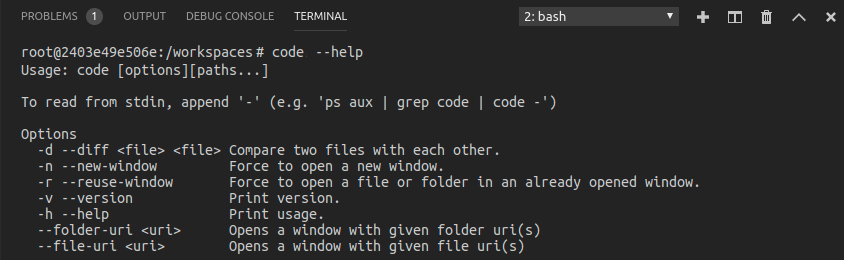
You can also use the code command line from this same terminal window to perform a number of operations such as opening a new file or folder in WSL. Type code --help to see what options are available from the command line.