
Under this menu item, various properties of the HTML-5 Chromium browser integrated in the QIWI Toolkit can be configured, such as the start URL, the appearance and behavior of the browser as well as keyboard and language settings.
The possible settings of both browsers chromium and qtwebbrowser are described here. Not all settings are available depending on the browser.
Figure: Browser Settings
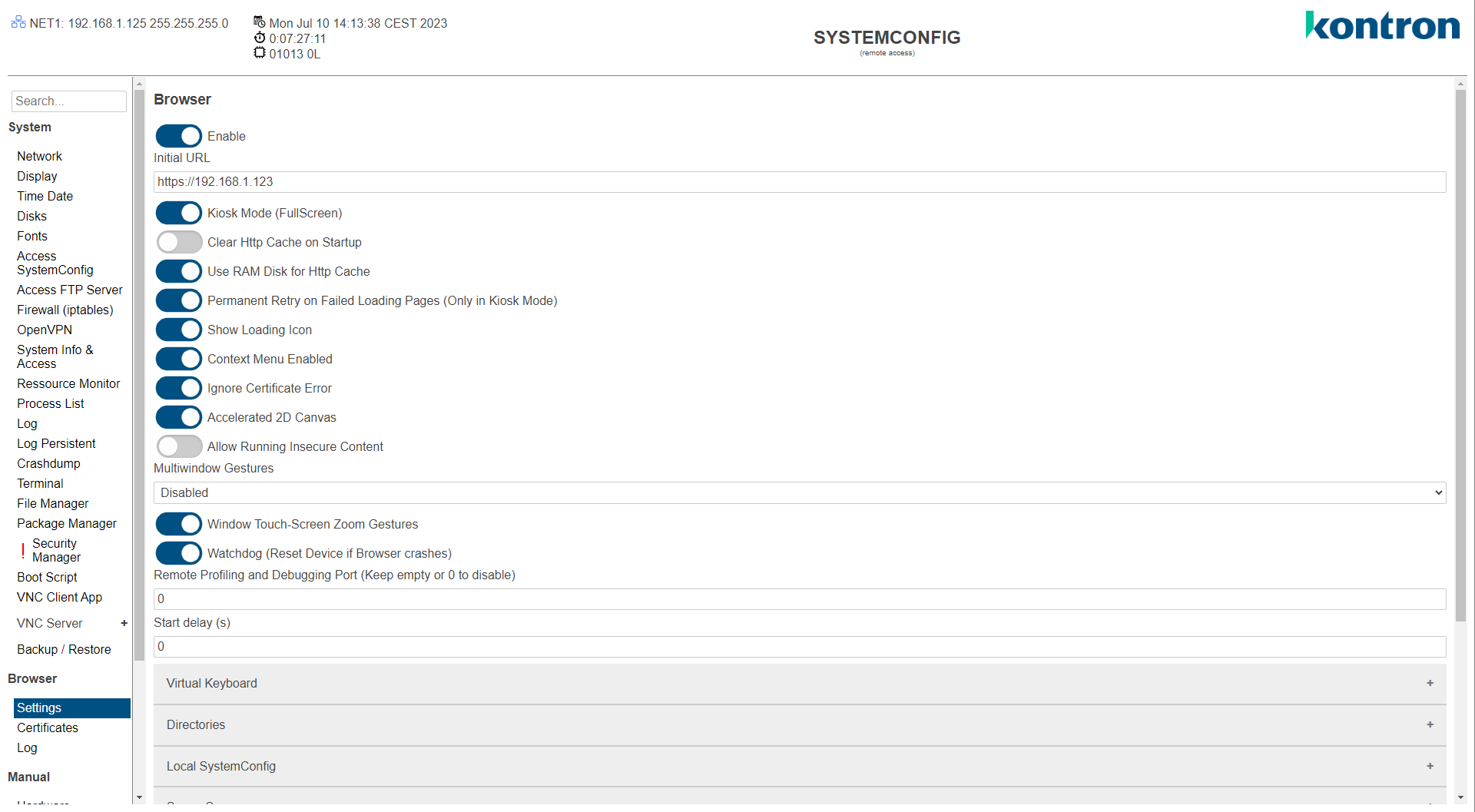
Table: General Browser Settings
|
Browser Setting |
Description |
Default |
|---|---|---|
|
Enable |
Start browser when booting. |
|
|
Initial URL |
Start URL which is loaded automatically after booting. |
|
|
Developer Mode |
Active: Native Chromium shown with all Menus and Tabs (window mode) |
Off |
|
Kiosk Mode |
Active: Browser is displayed Full Screen:
|
Off |
|
Clear http Cache on Startup |
On: http cache is cleared when booting.
|
On |
|
Use RAM Disk for http Cache |
On: http cache is located in a RAM disk, so web pages can be loaded faster.
|
On |
|
Permanent Retry on Failed Loading Pages |
On: If the web page is not accessible, the system automatically tries to reload it after 4 seconds.
This function is only available in KioskMode. |
On |
|
Show Loading Icon |
On: Load icon (e.g. hourglass) is displayed while the browser is loading the webpage. Icon disappear after webpage is loaded. |
On |
|
Context Menu Enabled |
On: Context Menu switched on
|
On |
|
Ignore Certificate Error |
On: No warning for certificate errors.
|
On |
|
Accelerated 2D Canvas |
On: GPU support enabled for HTML5 canvas graphics.
|
On |
|
Allow Running Insecure
|
On: HTTPS pages allow the execution of JavaScript, CSS, plugins or web sockets from an http URL.
|
On |
|
Multiwindow Gestures Enabled |
Additional navigation gestures:
Disabled: MultiWindow gestures deactivated.
|
Disabled |
|
Window Touch-Screen Zoom Features |
On: Zooming of the browser activated by gesture.
|
On |
|
Watchdog |
On: Browser is monitored. In the event of a crash, the device is restarted.
|
Off |
|
Start delay (s) |
Start delay of WebBrowser when booting in seconds |
0 |
Table: Initial Loading Image
|
Setting |
Description |
Default |
|---|---|---|
|
Enable |
Active: Shows Picture on boot, till Initial URL is loaded.
|
Off |
|
BackgroundColor |
Background Color of Window. |
White |
|
File |
Picture File. |
|
|
Retry Counter Enable |
Active: Show load retry counter on upper right corner. |
Off |
|
Retry Counter Color |
Text Color of Counter. |
black |
|
Retry Counter Pre Text |
Pre Text on left side of counter. |
|
|
Retry Counter Min |
Minimal counter value to show text. |
0 |
|
Retry Counter Size |
Text size of counter. |
16 |
Table: Remote Debugging
|
Setting |
Description |
Default |
|---|---|---|
|
Enable |
Active: Enable remote debugging
|
Off |
|
Remote Debugging Port |
Remote debugging allows you to debug and analyze the loaded Web page on the device online via a computer or mobile device that uses Chrome as its browser. To use remote debugging go to chrome://inspect/ in the Chrome/Chromium browser |
9222 |
Table: Local SystemConfig Settings
|
Setting |
Description |
Default |
|---|---|---|
|
Window Delay (s) |
Time how long the system configuration is shown on the local device display at startup. If this value is 0, the function is deactivated. |
10 |
|
AutoLogin |
Active: Automatic logon to the system configuration server. (logon for external access)
|
On |
|
User |
User name for system configuration login. |
root |
|
Password |
User Password for system configuration login. |
root |
Table: Server Monitoring
|
Setting |
Description |
Default |
|---|---|---|
|
Enable |
Active: Server serving Initial URL will be monitored and a Popup appears if connection is lost.
|
Off |
|
Reload After Connection Loss |
Active: Refreh Initial URL if after lost connection, server is available.
|
Off |
Table 24: Run JS Script On Page Load Success
|
Setting |
Description |
Default |
|---|---|---|
|
Script |
Java Script Content called when browser the page loaded successfully |
|
Table: Virtual Keyboard Settings
|
Setting |
Description |
Default |
|---|---|---|
|
Enabled |
Active: Virtual keyboard is displayed at input fields.
|
Active |
|
Language |
Start language setting for the virtual keyboard. |
English (Great Britain) |
|
Selectable Language |
Selectable languages in the virtual keyboard. |
All |
|
Style |
Virtual Keyboard Style (default, classic) |
default |
|
Locale Save By User Enabled |
Active: If the user changes the language setting of the Virtual Keyboard, it will be saved as the new start language.
|
Off |
|
VirtualKeyboard Width in Pixel |
Size of the virtual keyboard, based on the set width.
|
0 |
Table: Directories Settings
|
Setting |
Description |
Default |
|---|---|---|
|
List Child Directories (Download) |
Active: All mounted and removable disk are as a list available. (set root "/run/media" in Parent Download Directory)
|
Off |
|
Parent Download Directory |
Directory where a download of a file should be stored (e.g. USB stick: /run/media/sda). If this value is empty, the function is deactivated. |
|
|
List Child Directories (Upload) |
Active: All mounted and removable disk are as a list available. (set root "/run/media" in Parent Download Directory)
|
Off |
|
Parent Upload Directory |
Upload directory for files (e.g. USB stick: /run/media/sda). If this value is empty, the function is deactivated. |
|
Table: ScreenSaver Settings
|
Setting |
Description |
Default |
|---|---|---|
|
Delay |
ScreenSaver will be displayed after this time without user interaction. If this value is 0, the function is deactivated. |
0 |
|
Reduces Backlight Brightness |
If ScreenSaver is active, the backlight is dimmed. Value in percent on active screensaver. if 0 is selected, the display turns of during the active screensaver state. |
0 |
|
ScreenSaver Type |
Image:
|
Image |
|
Logo |
Image which is displayed at ScreenSaver. |
|
|
HTML Logo |
HTML page which is displayed at ScreenSaver. |
|
Table: PDF Settings
|
Setting |
Description |
Default |
|---|---|---|
|
Viewer |
ExternalViewer: PDF is displayed in a new browser window for a touchfriendly operation.
|
ExternalViewer |