
Under this menu item the additionaly certificates used in the browser can be viewed, installed and removed.
Figure: Certificate Settings
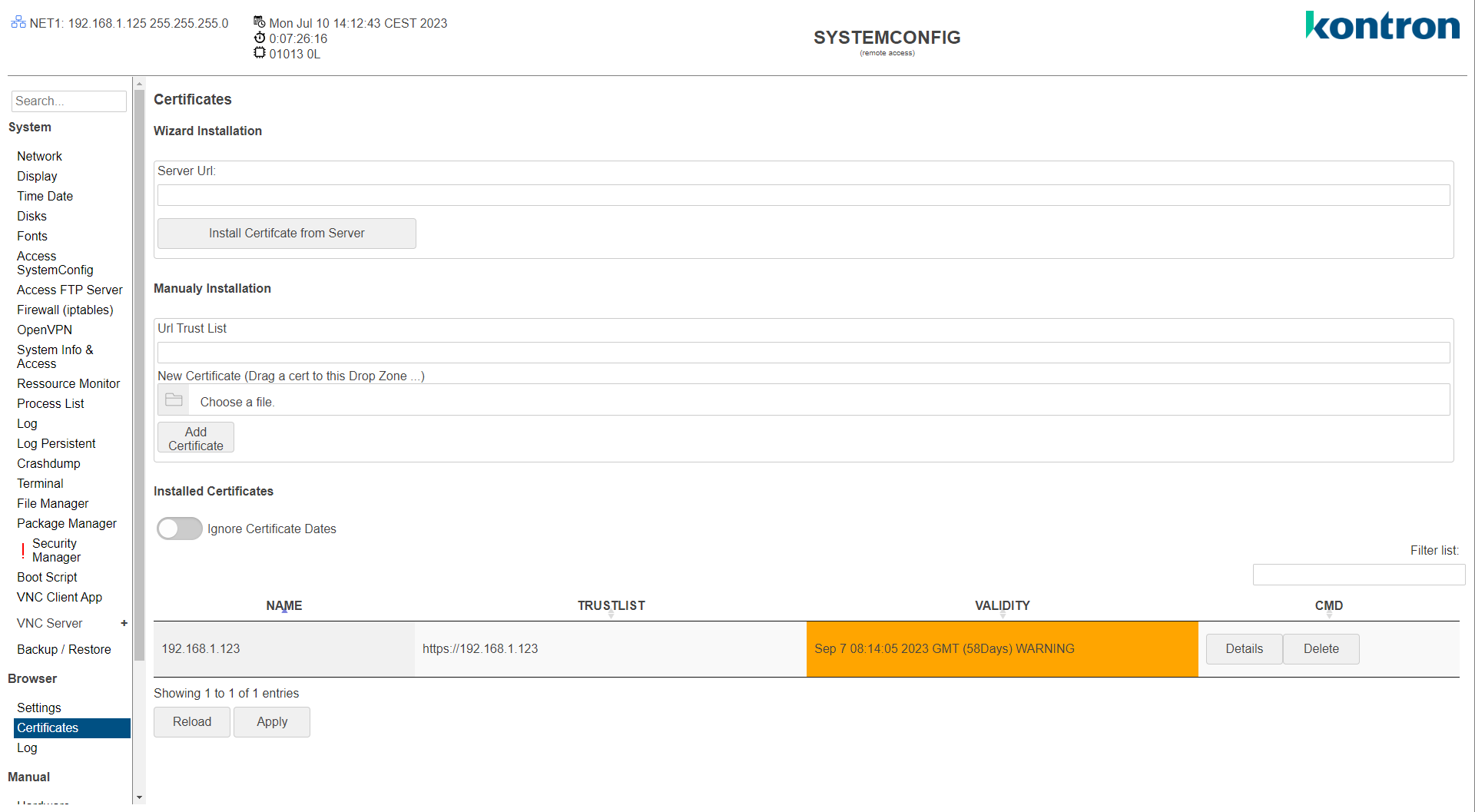
Wizard Installation
With the wizard it is very easy to add a certificate of a server automatically.
Simply enter the URL and click "Install Certificate from Server".
The certificate will be downloaded and installed directly from the server.
Manualy Installation
With the manual installation of a certificate, a certificate file can be selected on the PC.
In addition, the "Url Trust List" must be specified for the correct verification of the certificate when establishing a connection.
Multiple access urls can also be specified here via a ";".
Clicking on "Add Certificate" installs the certificate.
Installed Certificates
With the setting "Ignore Certificate Dates" the time stamp can be ignored during the verification of the certificate when establishing a connection.
This is necessary if the device does not receive a current time from an rtc or ntp server.
A change must be saved via the apply button.
The table lists all installed certificates that the browser can use.
|
Table column |
Description |
|---|---|
|
Name |
Installation Name of the Certificate |
|
Trust List |
Valid Url Addresses. |
|
Validity |
Expiration date of the certificate as date in days. Depending on the remaining time of the certificate, the highlight color of the field changes: green -> yellow (two-thirds expired) -> orange (nine-tenths expired) -> red (expired). |
|
CMD |
Details: Show Certificate Details Delete: Delete Certificate |